

SEO15 min read
How to Move from .org to .com Without Losing SEO Value
Move .org to .com without losing SEO value: our step-by-step guide to URL mapping, 301 redirects, .htaccess rules and Google's Change of Address tool.
- Written by
- Melissa Cross
- Published
- 8 October 2026
- Updated
- 22 October 2026
Your organisation has used a .org address for ten years. Now a rebrand calls for a .com, but the website brings in a steady flow of enquiries from Google, and nobody wants to be the person who switched that off.
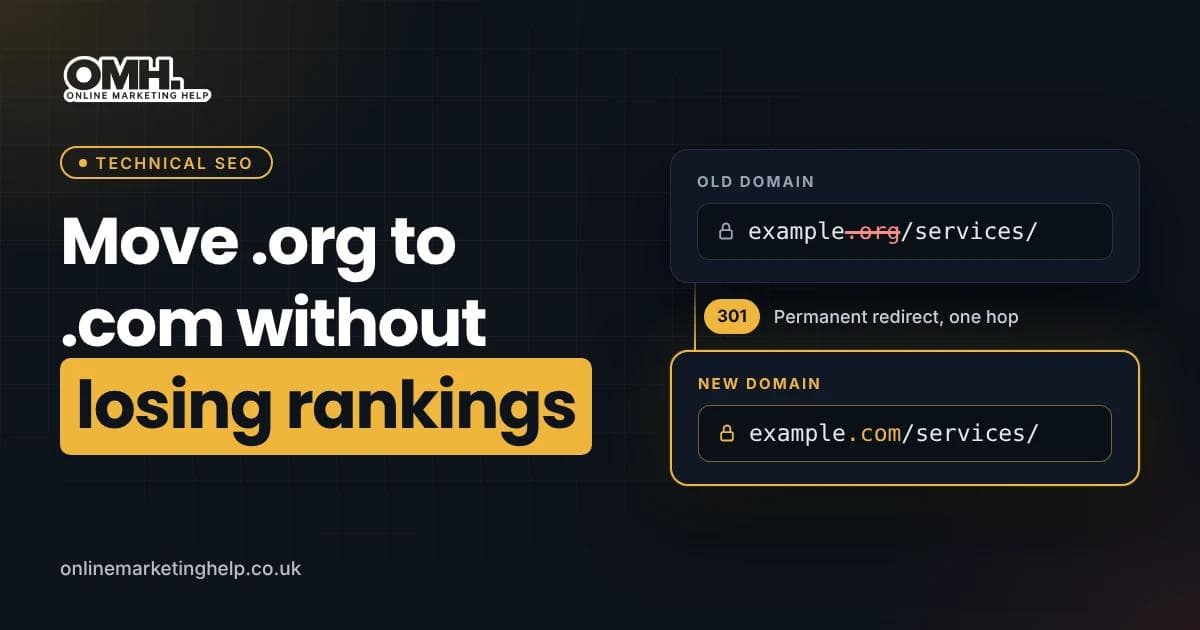
So, can you move .org to .com without losing SEO? Mostly, yes. Google can carry most of your rankings, backlinks and indexed pages across to the new domain, as long as every old URL points to its new home with a permanent 301 redirect. This guide walks you through the full process in 10 steps, with redirect rules you can copy and the checks to run before and after launch.
In this guide
- Does moving from .org to .com affect SEO rankings?
- Can a 10-year-old website keep its rankings?
- What do you need to protect during the move?
- Before launch: steps 1 to 4
- Launch: steps 5 to 7 (301 redirects)
- Telling Google: steps 8 and 9
- After launch: step 10 and monitoring
- How long does a domain migration take?
- Should you keep the old .org domain?
- Common mistakes, checklist and FAQs
Does moving from .org to .com affect SEO Value?#
Yes, but usually only for a while if the move is done properly. Google has to crawl the old URLs, follow the redirects and transfer its signals to the new addresses. Google's own site move guidance says visibility in Search may fluctuate temporarily during the move, so short-term changes do not mean the migration has failed.
During the first few weeks, you will usually see some of the following:
- Keyword positions and organic traffic moving up and down.
- Old .org URLs still appearing in Google for a while.
- New .com URLs gradually replacing them.
- Shifts in the indexing reports for both properties in Google Search Console.
A domain move does not reset your SEO, but a badly connected one can throw years of work away.
Is .com better than .org for SEO?
No. Google's documentation describes .com and .org as generic top-level domains (gTLDs) that are not tied to any location, and neither carries a built-in ranking advantage. A .com can suit a commercial brand better, while a .org can signal a charity, association or public-interest body. Base the decision on your brand and audience, not on an expected ranking boost.
Can a 10-year-old website keep its rankings after a domain change?#
An established site can keep most of its search value, because the value sits in its pages, content and backlinks rather than in the domain name. Google treats a 301 redirect as a strong signal that the new URL should replace the old one. Website age on its own does not guarantee rankings, and nobody can promise every position will stay the same.
Picture a professional association with 400 indexed pages, a library of PDF guides and links from industry publications built up over a decade. If it simply launches a new .com site without connecting the old URLs, Google sees a brand-new website with no history. If every old page redirects to its matching new page, that history comes with it.
What do you need to protect when moving from .org to .com?#
Protect anything that people or search engines reach through the old domain: page URLs, content, backlinks, downloadable files, subdomains and email. Each one needs a plan before launch day. The table below shows what goes wrong if an item is missed, and how to protect it during the move.
| What to protect | Risk if it is missed | How to protect it |
|---|---|---|
| Page URLs | Old links return 404 errors and rankings drop | Keep the same paths on .com and add page-to-page 301 redirects |
| Content | Google sees new pages rather than the same pages at new addresses | Keep titles, headings, body copy and structured data the same during the move |
| Backlinks | Links from other sites lead to dead pages | Redirect every linked URL, then ask key sites to update their links |
| PDFs and images | Downloads and image search traffic disappear | Include media URLs in the redirect map |
| Subdomains | Portals or booking systems stop working | Assess each subdomain separately; the main redirect does not cover them |
| Email on .org | Mail stops arriving if DNS changes | Keep the .org MX records until email has moved |
Change one thing at a time. Google recommends planning site changes one after the other rather than all at once, so avoid combining a domain move with a redesign or a new URL structure. If you do need both, read our guide on how to redesign your website without losing SEO first.
Before launch: how do you prepare a .org to .com migration?#
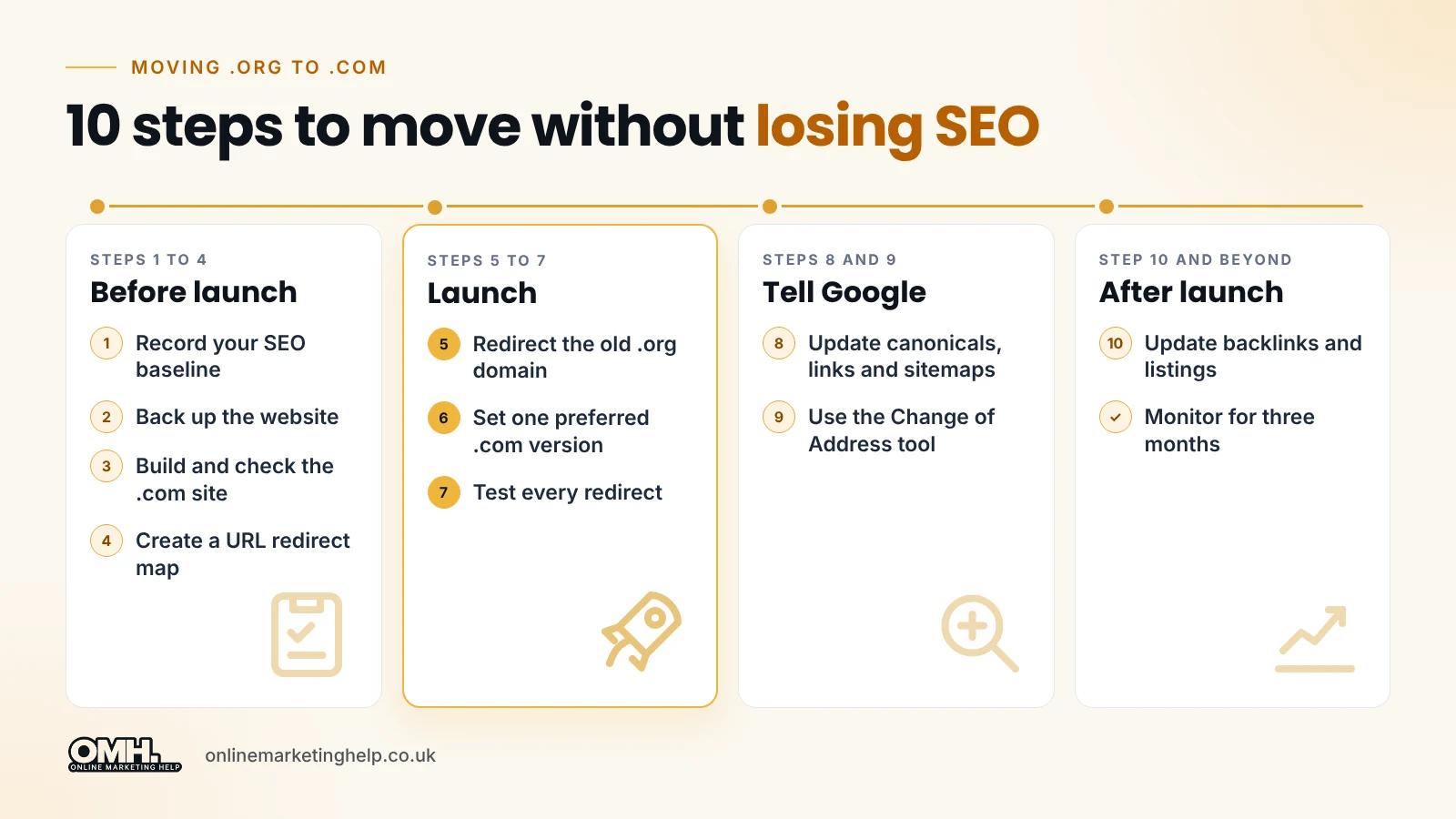
Preparation covers four steps: record how the current site performs, back up everything, build and check the new .com site, and create a redirect map that pairs each old URL with its new one. Most migration problems start here, because a missing URL or a stray noindex tag is far easier to fix before launch than after.
Step 1: Record your current SEO performance
Take a baseline so you can compare results after the move. Use Google Search Console, Google Analytics 4 and a crawler such as Screaming Frog to collect:
- Every indexable URL, plus existing redirects and broken pages.
- Clicks, impressions and top queries for the last 16 months (export them from Search Console).
- Your most important keyword positions and organic landing pages.
- Pages with the most backlinks, from Search Console's Links report or a backlink tool.
- Canonical tags, XML sitemap URLs, images, PDFs and other downloads.
Step 2: Back up the existing website
Back up the database, files, media library, themes, plugins and configuration files, and store the copy away from the live hosting. Screenshot or export your DNS records too, including MX records for email, SSL settings and any connected services such as payment gateways, CRMs and booking tools.
Step 3: Build and check the new .com website
Set up the .com site on a staging address first and check it before any redirects go live:
- A valid SSL certificate on example.com and www.example.com.
- No noindex tags and no Disallow: / in robots.txt on the live .com site.
- Canonical tags that point to the .com URLs.
- Internal links, images and downloads that use the .com address.
- Working forms, navigation and an XML sitemap listing .com URLs.
On WordPress, update the WordPress Address and Site Address under Settings > General, then replace the old domain across the database. WP-CLI handles serialised data safely, and the --dry-run flag shows what will change first:
# Preview the changes first
wp search-replace 'https://example.org' 'https://example.com' --all-tables --dry-run

# Then run it for real (take a database backup first)
wp search-replace 'https://example.org' 'https://example.com' --all-tables
Page builders sometimes store URLs in their own format, so check a few pages by hand afterwards. If you would rather not touch the database yourself, our WordPress development team can handle the technical side of the move.
Step 4: Create a URL redirect map
A redirect map is a spreadsheet that pairs every important old URL with its new destination. If your paths stay the same, one domain-wide rule covers most of it. Any URL that changes needs its own row.
| Old URL | New URL | Status |
|---|---|---|
| https://example.org/ | https://example.com/ | 301 |
| https://example.org/about-us/ | https://example.com/about-us/ | 301 |
| https://example.org/services/ | https://example.com/services/ | 301 |
| https://example.org/news/old-article-name/ | https://example.com/news/new-article-name/ | 301 (path changed) |
| https://example.org/files/annual-report.pdf | https://example.com/files/annual-report.pdf | 301 |
Point each old page at the closest matching new page. Redirecting everything to the homepage throws away the value of deep pages, and Google may treat those redirects as soft 404 errors.
How do you set up 301 redirects from .org to .com?#
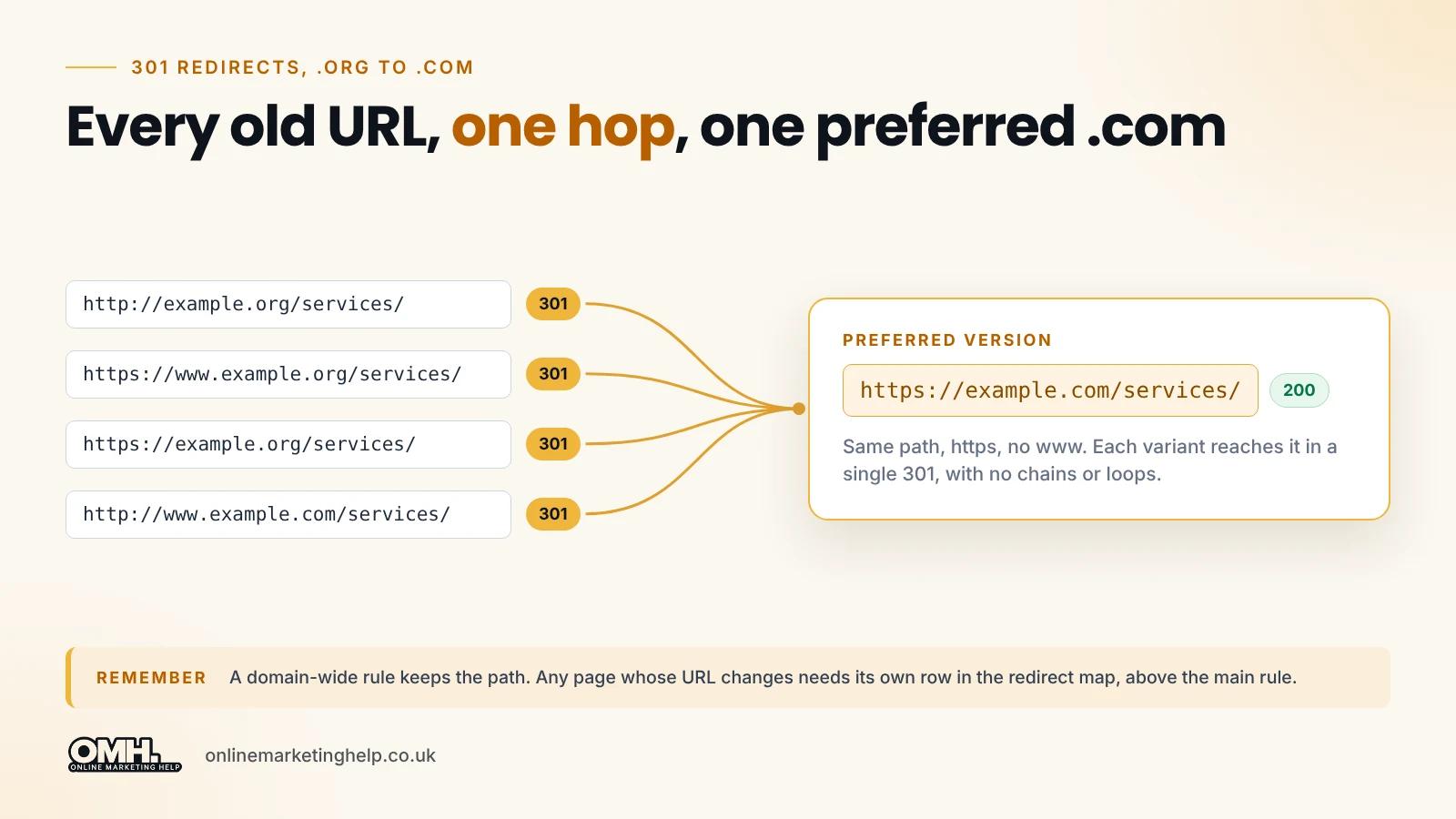
Add a permanent 301 redirect on the old .org domain that sends every request to the same path on the .com domain, then add a second rule on the .com site so all traffic lands on one preferred version, such as https without www. On Apache servers you can do both in the .htaccess file; Nginx needs the equivalent server configuration.
Step 5: Redirect the old .org domain
For an Apache server with mod_rewrite, add this to the .htaccess file on the old domain. On WordPress, place it above the # BEGIN WordPress block. Replace example.org and example.com with your own domains.
# Redirect every .org URL to the same path on .com
<IfModule mod_rewrite.c>
RewriteEngine On
RewriteCond %{HTTP_HOST} ^(www\.)?example\.org$ [NC]
RewriteRule ^ https://example.com%{REQUEST_URI} [R=301,L,NE]
</IfModule>
This rule catches both example.org and www.example.org, keeps the original path, and returns a 301. Query strings (for example ?page=2) carry across automatically. It only works when the paths match on both domains; any page with a changed URL needs its own redirect above this rule.
On Nginx, the same redirect goes in the server block for the old domain:
server {
    listen 80;
    listen 443 ssl;
    server_name example.org www.example.org;
    # ssl_certificate lines for example.org go here
    return 301 https://example.com$request_uri;
}
Keep a valid SSL certificate on the old domain. Visitors who follow an old https://example.org link see a security warning before the redirect can run if the certificate has expired.
Step 6: Set one preferred version of the .com domain
Choose one version, such as https://example.com without www, and redirect the others to it. On Apache:
# Send www and http traffic to https://example.com
<IfModule mod_rewrite.c>
RewriteEngine On
RewriteCond %{HTTP_HOST} ^www\.example\.com$ [NC,OR]
RewriteCond %{HTTPS} !=on
RewriteRule ^ https://example.com%{REQUEST_URI} [R=301,L,NE]
</IfModule>
Two hosting set-ups need extra care:
- Shared document root. If both domains point to the same folder, put both rule sets in the one .htaccess file, with the .org rule first.
- Cloudflare or another proxy. If HTTPS ends at the proxy, the %{HTTPS} check can cause a redirect loop. Use the proxy's own redirect rules or your host's HTTPS setting instead.
Always back up .htaccess before editing it. A single typo can take the whole site offline with a 500 error.
Step 7: Test every redirect
Check the redirects with a browser, Screaming Frog (upload your redirect map in list mode) or cURL from the command line:
# Check one URL
curl -I https://example.org/services/

# Follow the full chain and show each hop
curl -sIL http://www.example.org/services/ | grep -iE "^HTTP|^location"
A correct result shows one 301 with a Location: https://example.com/services/ header, followed by a 200 on the new URL. Test each of these variants:
- http and https, with and without www, on the old domain.
- A deep page, a URL with a query string and a PDF.
- The .com variants (http, www) to confirm they land on the preferred version.
Look for loops, wrong destinations and chains. Google says Googlebot generally follows up to 10 redirect hops, but every extra hop slows visitors down, so aim for a single hop from old URL to final URL.
How do you tell Google your site has moved to .com?#
Send Google consistent signals on the new site, then use the Change of Address tool in Google Search Console. Update canonical tags, internal links and the XML sitemap so they all use .com, keep both domains crawlable, and submit the move from the old property once the 301 redirects are live. The tool supports the redirects; it does not replace them.
Step 8: Update canonicals, internal links and sitemaps
- Canonical tags: each .com page should point to itself, for example <link rel="canonical" href="https://example.com/services/" />. None should still point to .org.
- Internal links: menus, buttons, footers and in-text links should use .com URLs directly, not rely on redirects.
- XML sitemap: submit the new .com sitemap in Search Console. Google says you can remove the old sitemap, as it will use the new one going forward.
- Robots.txt: do not block the old domain. Google has to crawl the old URLs to see the redirects.
- Tracking and ads: update the GA4 data stream URL, Google Tag Manager triggers and the final URLs in any ad campaigns.
Step 9: Use the Change of Address tool in Google Search Console
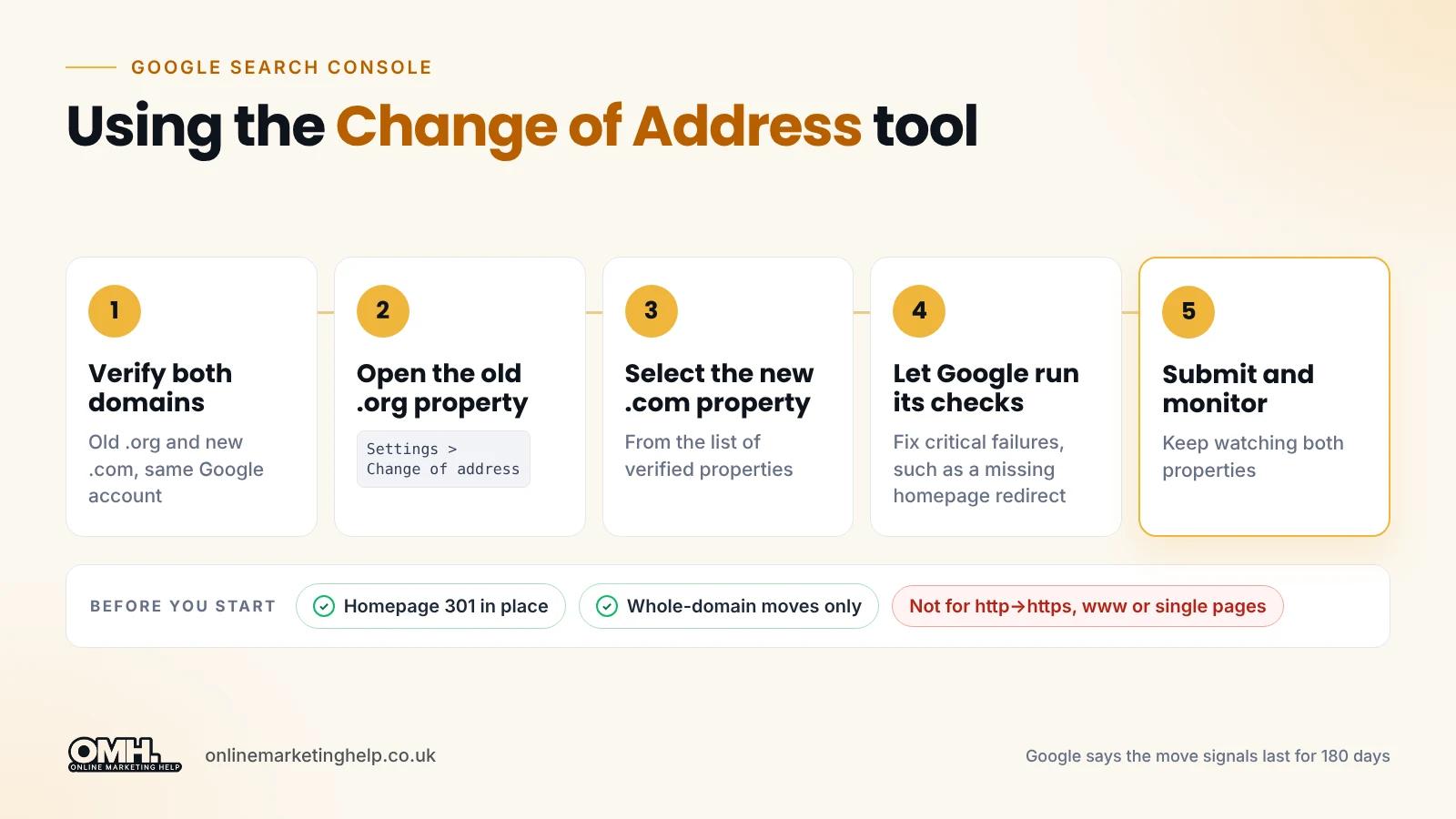
Google's Change of Address tool tells Google that a whole domain has moved. Check the requirements first:
- You must be a verified owner of both the old and new properties, using the same Google account.
- It works on domain-level properties. It does not cover moves from http to https, www to non-www, or individual pages.
- The old homepage must 301 redirect to the new homepage before you start.
Then follow these steps:
- Verify the old .org and new .com domains in Search Console.
- Open the old .org property and go to Settings > Change of address.
- Select the new .com property from the list.
- Let Google run its checks. Fix any critical failures, such as a missing homepage redirect.
- Submit the request.
- Keep monitoring both properties. Google says the move signals last for 180 days.
If you also use Bing Webmaster Tools, its Site Move tool does the same job for Bing.
After launch: how do you monitor SEO after moving to .com?#
Compare the new site against the baseline you recorded in step 1, page by page rather than only by total traffic. Watch indexing, redirects, rankings, referral traffic and enquiries in Google Search Console and GA4, and update your most valuable backlinks so they point straight at the new domain instead of relying on redirects forever.
Step 10: Update backlinks and your own listings
Find your strongest backlinks in Search Console's Links report or a backlink tool, and ask those sites to update the URL to .com. Then update the links you control yourself:
- Your Google Business Profile website link, which matters for local SEO.
- Social media profiles and online directories.
- Email signatures, PDFs and printed materials.
- Ad campaigns, landing pages and email marketing templates.
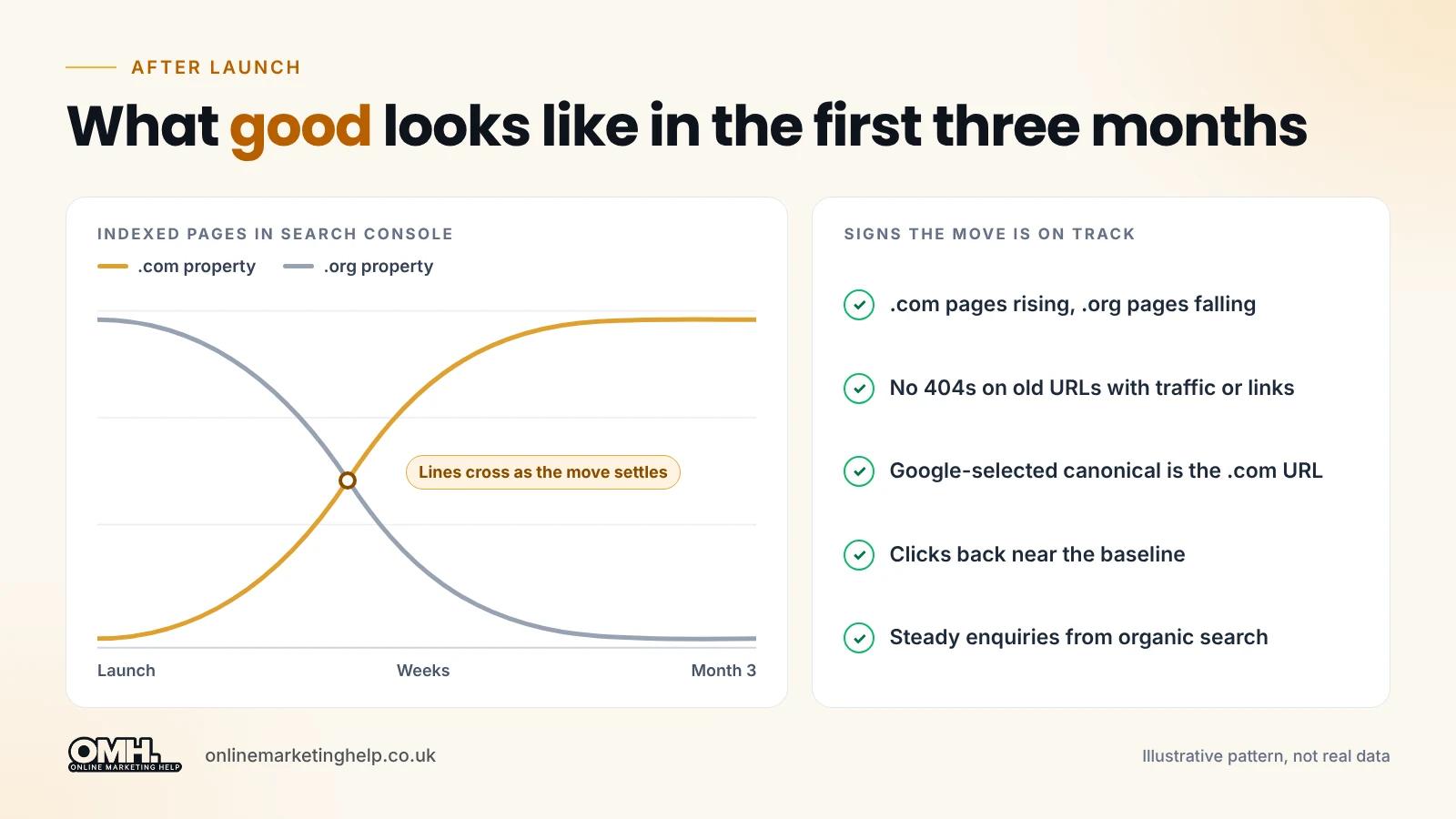
What to watch in the first three months
| Check | Where to look | What good looks like |
|---|---|---|
| Indexing | Search Console > Pages (.com property) | .com pages rising, .org pages falling |
| Redirect errors | Crawler, Search Console 404 report | No 404s on old URLs that had traffic or links |
| Canonicals | URL Inspection tool | Google-selected canonical is the .com URL |
| Rankings and clicks | Search Console > Performance | Back near the baseline once the move settles |
| Enquiries | GA4 conversions | Steady leads from organic search |
Remember that seasonality, competitors and Google algorithm updates also move traffic. Compare like-for-like periods and look at individual pages before blaming the migration.
How long does a domain migration take for SEO?#
There is no fixed timeframe. Google's site move documentation says a small to medium-sized website can take a few weeks for most pages to move, and larger sites take longer. The speed depends on how many URLs you have, how fast your server responds and how often Google crawls the site.
Avoid other big changes for the first few weeks, so you can tell whether any movement comes from the migration. Read the full Google guide to site moves with URL changes if you are moving a large or complex site.
Should you keep the old .org domain after moving to .com?#
Yes. Keep the old domain registered and its redirects running. Google's guidance says to keep redirects for as long as possible, and generally at least one year. For a site with a decade of backlinks, bookmarks and printed references, keeping the redirects permanently is the safer choice.
Letting the old domain expire is a real risk. Someone else could register it and take advantage of your old backlinks and reputation, or use it to impersonate your organisation.
What about subdomains?
The main domain redirect and the Change of Address tool do not move subdomains such as portal.example.org or shop.example.org. Each subdomain may have its own logins, databases and integrations, so assess it separately. Sometimes it is safer to leave a business-critical subdomain where it is and move it later.
What are the most common domain migration mistakes?#
The most common mistakes are missing or mass homepage redirects, canonical tags still pointing to .org, robots.txt or noindex rules blocking the new site, forgotten PDFs and subdomains, and cancelling the old domain too early. Almost all of them can be caught with a redirect map and a full test before launch.
| Mistake | What happens | How to avoid it |
|---|---|---|
| No 301 redirects | Old URLs return 404 errors | Domain-wide rule plus a redirect map |
| Everything redirected to the homepage | Deep pages lose their value | Page-to-page redirects |
| Canonicals still on .org | Mixed signals slow the move down | Self-referencing .com canonicals |
| Redesign at the same time | You cannot tell what caused a drop | Move first, redesign later |
| Forgotten PDFs and images | Downloads break | Add media URLs to the map |
| New site blocked from Google | Pages do not get indexed | Check robots.txt and noindex before launch |
| Old domain cancelled | Backlinks and bookmarks stop working | Renew it and keep the redirects |
| No monitoring | Problems surface after traffic has fallen | Weekly checks for the first three months |
Domain migration checklist at a glance#
| Phase | Task | Result |
|---|---|---|
| Before launch | Benchmark, back up, build the .com site, create the redirect map | A baseline and a rollback plan |
| Launch | Add 301 redirects on .org and set the preferred .com version | Every old URL leads to its new page |
| Testing | Check variants, chains and loops with cURL or a crawler | One clean hop, then a 200 |
| Google signals | Update canonicals, links, sitemap; use Change of Address | Clear, consistent move signals |
| After launch | Update backlinks, monitor Search Console and GA4 | Problems found and fixed early |
When should you get help with a domain migration?#
Get specialist help if your site has thousands of URLs, the URL structure is changing, you run an online shop or multilingual site, or business systems sit on subdomains. In those cases a single missed rule can cost months of traffic, and fixing it after launch takes far longer than planning it properly.
No one can guarantee that rankings stay exactly the same after a domain move. What careful planning can do is give Google every signal it needs, and catch problems before your customers do. Our SEO services team plans and monitors migrations for UK businesses.
Frequently asked questions#
Can I move .org to .com without losing SEO?
In most cases you can keep the bulk of your SEO value. Page-to-page 301 redirects, unchanged content, updated canonicals and the Change of Address tool all help Google carry rankings across. Expect some short-term movement, and do not trust anyone who guarantees identical rankings after the move.
Do 301 redirects pass link value to the new domain?
Yes. Google's Gary Illyes said in 2016 that 30x redirects no longer lose PageRank, and Google treats a 301 as a strong signal that the new URL should replace the old one. This works best for one-to-one redirects to equivalent pages, not mass redirects to the homepage.
How long should I keep 301 redirects after a domain move?
Google recommends keeping redirects for as long as possible, and generally at least one year. For an established site with years of backlinks and bookmarks, keep them permanently. Keep the old domain registered too, so nobody else can buy it and use your old links.
Do I need to update .htaccess on both domains?
Usually, yes. The old domain needs a rule that redirects to .com, and the new domain needs a rule that sends every variant to one preferred version. If both domains share one folder, both rules can sit in one .htaccess file. Nginx servers do not read .htaccess files at all.
Is .com better than .org for Google rankings?
No. Google treats .com and .org as generic top-level domains, and neither gives a ranking advantage on its own. A .com can suit commercial brands, while a .org can suit charities and associations. Make the choice for branding and trust, then migrate carefully to protect what you have built.
Final thoughts#
You can move .org to .com without losing SEO if you treat it as a technical project rather than a quick address change. Map every URL, add page-to-page 301 redirects, keep the content the same, update canonicals and sitemaps, and tell Google through Search Console. Then keep the old domain and its redirects, and watch the data closely for the first few months.
If you are planning a domain move and want it done safely, book a Growth Consultation with Online Marketing Help.
Keep reading
Related insights
SEO
Claude SEO Audit Skill: How Our AI SEO Audit Found Casino Spam That Semrush Missed
Our Claude SEO audit skill found casino spam Semrush and Screaming Frog missed. See how this AI SEO audit works, how we removed the spam and how to build your own.
Read articleSEO
What Is an AI Voice Agent? A Complete Guide for UK Businesses
What is an AI voice agent? See how AI voice agents answer calls and book appointments for UK businesses, plus costs, UK GDPR rules and when to use one
Read articleSEO
Zero-click searches, AI Overviews and featured snippets: How to win position zero
Discover how to win Position Zero on Google by mastering zero-click searches, AI Overviews, and featured snippets. Boost visibility and drive traffic with smart SEO strategies.
Read articleTurn useful ideas into a practical growth plan.
Tell us what you want to improve and what you have tried so far. We will help you identify the clearest next step.
What happens next
- Review the current position
- Define the commercial objective
- Agree the work and measurement