
Websites & Ecommerce21 min read
What to do after malware removal: 11 steps to stay clean
Your website is clean again, but most reinfections come from what the cleanup left behind. Here is what to do next, in order, from backdoors and passwords to Google warnings and UK reporting rules.
- Written by
- Melissa Cross
- Published
- Updated
Your website has been cleaned. The malware scanner reports no infections, suspicious redirects have disappeared, and the spam pages are gone. It is tempting to put the incident behind you and get back to business.
But there is one important question: how did the attacker get in, and have you closed that route?
Removing malware does not automatically fix the vulnerability that allowed the attack. A hidden backdoor, compromised administrator account, outdated plugin or stolen password could still give an attacker access. Without dealing with the original cause, your website could be compromised again.
We look after WordPress sites through our WordPress maintenance plans, and understand why the work should not stop when a malware scan comes back clean. A proper recovery process needs to secure the website, investigate the attack and monitor for signs of further activity.
Quick Answer: What Should You Do After Malware Removal?
After malware removal, take these essential steps:
- Change every website, hosting and database password.
- Revoke active sessions and check administrator accounts.
- Look for hidden backdoors and suspicious files.
- Update your website software and remove unused components.
- Identify how the attacker gained access.
- Scan other websites and devices connected to the account.
- Request a security review from Google if your website was flagged.
- Check email delivery and domain reputation.
- Create a fresh, verified backup.
- Monitor your website closely for at least a month.
- Document the incident and improve your security process.
If the incident involved personal data, assess whether you have a legal obligation to notify the Information Commissioner's Office (ICO) or affected individuals under UK GDPR.
Why Do Websites Get Hacked Again After Malware Removal?
A website can become infected again when the original vulnerability remains open or an attacker has left another way to access it.
Malware removal deals with the visible infection. It does not necessarily remove every compromised account, hidden file, vulnerable plugin or stolen credential.
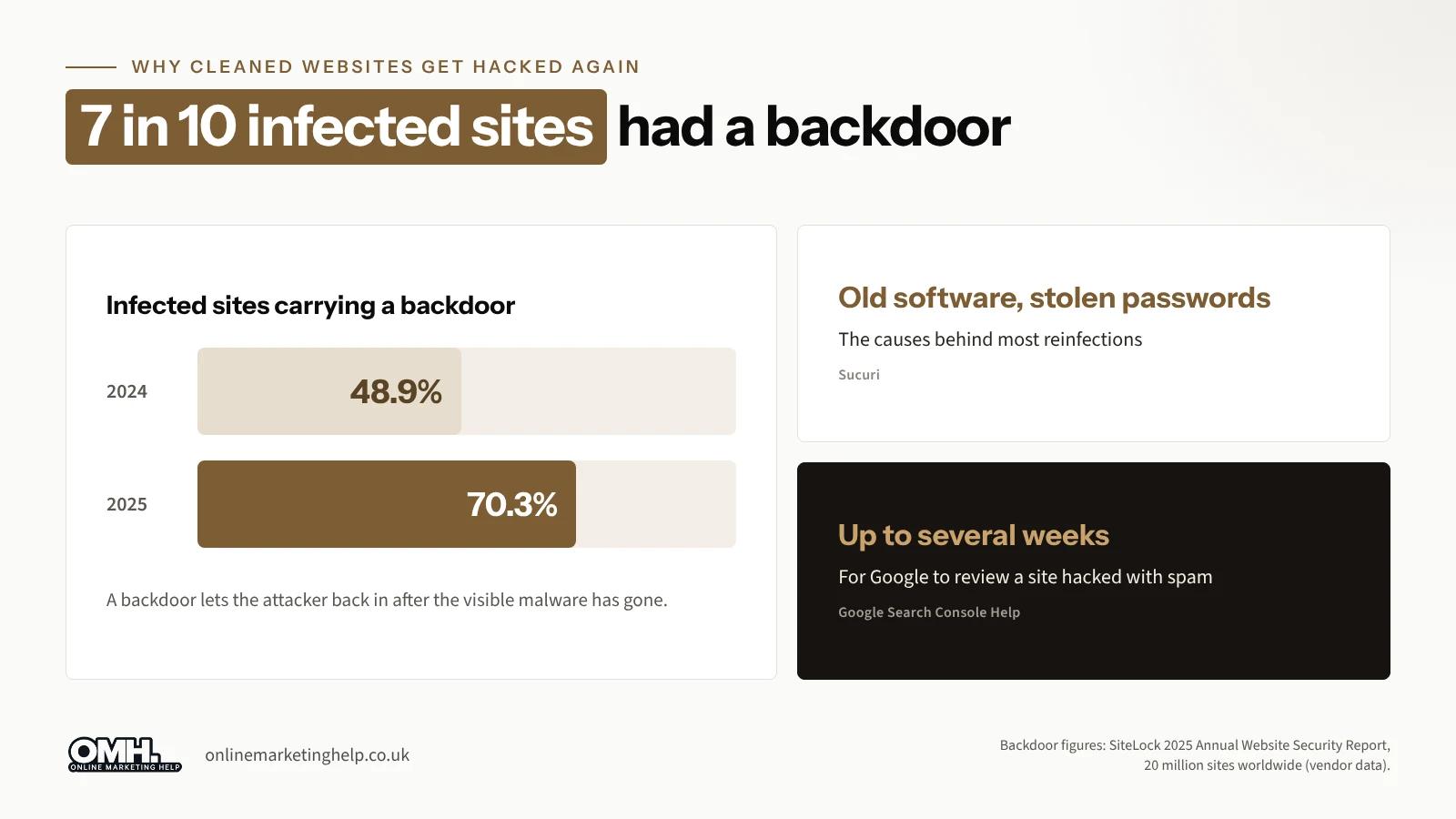
SiteLock's 2025 Annual Website Security Report found that backdoors were present on around seven in ten infected websites in its monitored network. The report analyses more than 20 million websites worldwide. SiteLock is a website security provider, so these figures should be understood as vendor-reported data rather than an independent UK-wide statistic.
A backdoor is a hidden file, script or account that allows an attacker to regain access without repeating the original attack.
There are several other reasons a cleaned website might be compromised again:
- Outdated software: An old plugin, theme or CMS version may still contain the vulnerability used in the original attack.
- Compromised passwords: An attacker may already know the login details for your website, hosting account or email.
- Hidden administrator accounts: An unauthorised user may have been created during the attack.
- Infected devices: A computer containing password-stealing malware could expose your new login details.
- Shared hosting risks: Other websites within the same hosting environment may create additional security risks.
- Unsecured backups or staging sites: An older infected copy may introduce the malware again.
The important point is simple: a clean scan is a good start, but it is not proof that every security weakness has been fixed.
What Does Malware Removal Fix, and What Can It Leave Behind?
A typical malware cleanup may remove infected files, malicious scripts, injected code, spam pages and suspicious redirects. A technician may also reinstall affected website files from clean copies and provide a scan report.
What Malware Removal Usually Fixes
- Infected website files and malicious code.
- Suspicious redirects and injected content.
- Spam pages created by attackers.
- Modified CMS files, where identified.
- Malware detected by the scanning tools used.
What It May Leave Behind
- Hidden backdoors or unauthorised administrator accounts.
- The outdated plugin or vulnerable software that allowed the attack.
- Compromised passwords and active login sessions.
- Other infected websites or staging copies on the same hosting account.
- Malware on a computer used to manage the website.
- Spam URLs remaining in Google's search index.
- Google Safe Browsing warnings or email reputation problems.
Before considering the recovery complete, ask your developer or security provider two questions:
- What was removed?
- What was the original entry point, and how has it been secured?
If the second question has no clear answer, further investigation may be necessary.
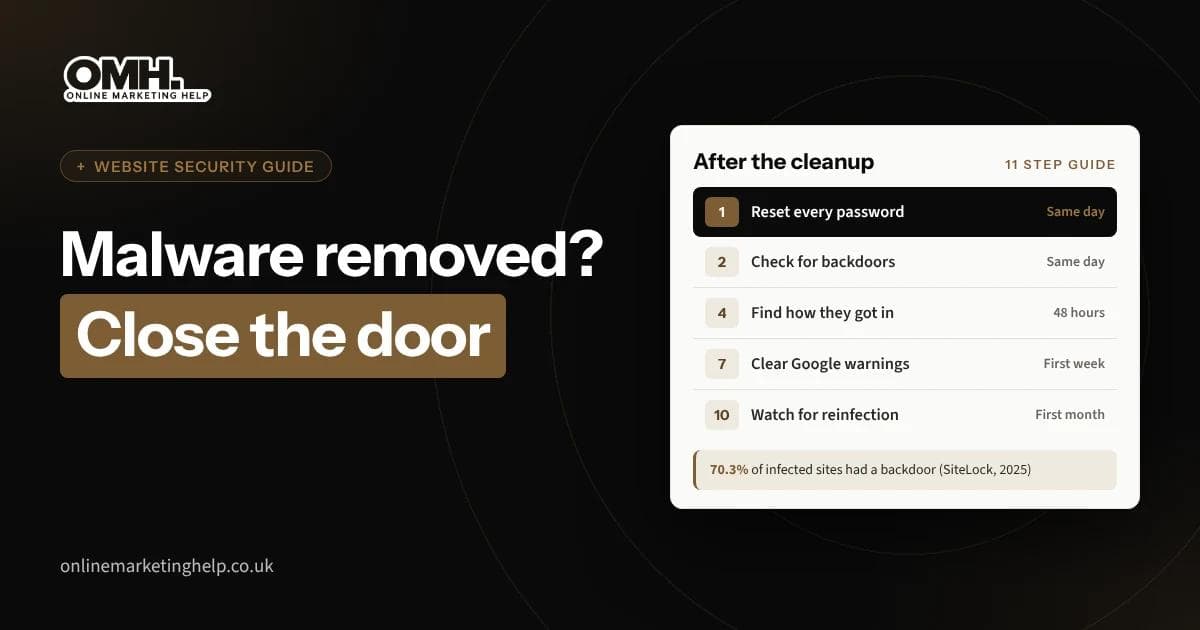
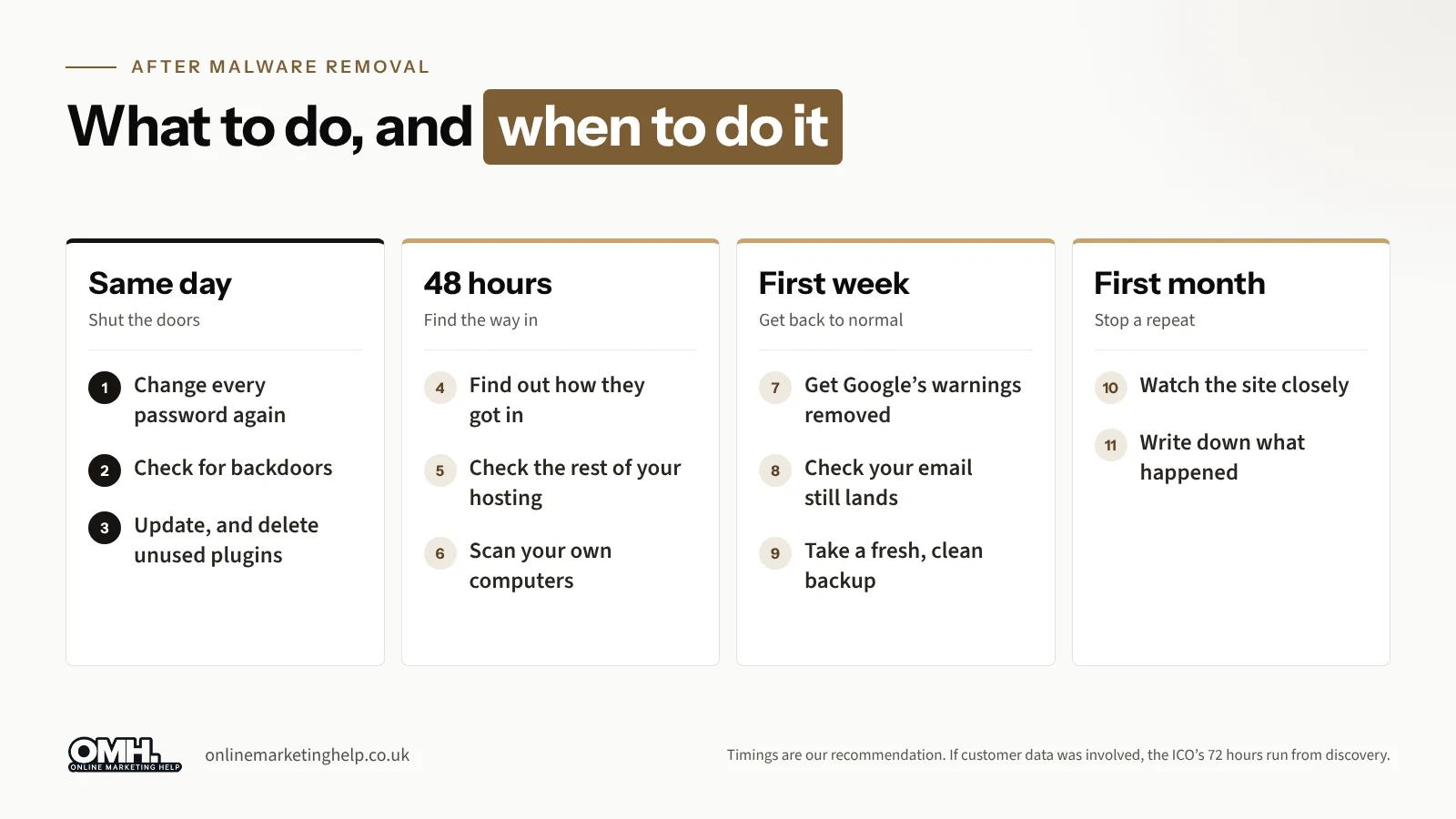
What to Do After Malware Removal: 11 Essential Steps
Follow this malware cleanup checklist to secure your website after an attack. Some actions should be completed immediately, while others require ongoing monitoring.
1. Change Every Password After the Website Is Clean
If passwords were changed while malware was still active, attackers may have captured the new credentials.
Once your website has been confirmed clean, change all important passwords again. Include WordPress administrator and user accounts, hosting control panel, FTP and SFTP accounts, database credentials, website-related email accounts, domain registrar accounts, CDN, DNS and other connected service accounts.
Use strong, unique passwords for every service. A password manager can help you create and store them securely.
WordPress's official guide to recovering a hacked website recommends changing passwords again after confirming that the website is clean.
For WordPress websites, regenerate the authentication secret keys and salts in the wp-config.php file. This helps invalidate existing login cookies and forces users to sign in again.
Do not stop at changing passwords. Revoke active sessions, review connected applications and integrations, and rotate exposed API keys or other credentials where necessary.
2. Check for Hidden Backdoors and Unauthorised Accounts
A malware scanner may identify known threats, but suspicious files or accounts can sometimes remain undetected. Review your website carefully.
- Administrator accounts you do not recognise.
- Unknown PHP files or scripts.
- Unexpected changes to .htaccess.
- Suspicious files inside upload directories.
- Unusual scheduled tasks or cron jobs.
- Modified core, theme or plugin files.
- Unexpected changes to file permissions.
Compare important files against clean versions from the original software provider. If possible, run another scan using a different reputable security tool.
Do not delete unfamiliar files simply because their names look suspicious. Some legitimate website components have unusual names. Ask a qualified developer or security specialist to investigate before removing files that your website may need.
3. Update Everything and Remove Unused Software
Outdated website software is a common source of security vulnerabilities. If your website runs WordPress, update WordPress core, all active plugins, all active themes, PHP and other supported server components, where appropriate.
Delete plugins and themes that you no longer use. Deactivating an unused plugin does not remove its files from the server.
For additional guidance, see Sucuri's recommendations for reinfected websites.
Check whether each plugin or theme is actively maintained by its developer. If it is abandoned, unsupported or has unresolved security issues, replace it with a maintained alternative.
Before making major updates, take a verified backup and test important changes in a staging environment where possible.
4. Find Out How the Attackers Got In
Cleaning the website without identifying the original entry point leaves an important part of the recovery unfinished.
Ask your hosting provider or developer to investigate the available evidence. Useful information may include hosting access logs, login history and failed login attempts, file modification timestamps, malware scanner reports, unexpected administrator activity, recent plugin, theme or CMS changes, and unusual server requests or processes.
The investigation should identify the most likely entry point and the corrective action taken to close it.
For example, if an outdated plugin allowed the attacker to upload malicious files, removing those files is not enough. The plugin must also be updated, replaced or removed.
If you are unsure whether the original entry point has been properly secured, consider requesting a website audit to identify potential security and website issues.
Keep a record of the findings. It will help you understand the incident and reduce the chance of repeating the same mistake.
5. Scan Every Website on Your Hosting Account
If you manage several websites under one hosting account, do not check only the website that was originally infected. Other sites may contain similar vulnerabilities or compromised files.
- Every live website.
- Subdomains.
- Development and staging websites.
- Old website installations.
- Unused website directories.
- Other sites sharing the same hosting environment.
Remove old installations that are no longer needed. Check whether any website has a separate administrator account or outdated software.
If you use shared hosting, ask your hosting provider whether the affected account or server environment has been checked for further compromise.
6. Scan the Computers and Devices Used to Manage Your Website
Your website may be clean, but the computer used to access it could still be compromised. A device infected with a password-stealing program may expose new credentials as soon as you enter them.
Run reputable security scans on computers used by administrators, developers and other people with website access. Pay particular attention to malware and spyware, suspicious browser extensions, unrecognised remote-access applications, unusual startup programs and unauthorised password-saving tools.
Keep operating systems, browsers and security software updated. If you suspect a device is compromised, avoid using it to access your website until it has been checked and secured.
7. Request Google to Remove Hacked Website Warnings
If Google detected malware, phishing or hacked content on your website, visitors may see security warnings in search results or browsers. Cleaning the website does not automatically complete Google's review process.
To request a review:
- Sign in to Google Search Console.
- Select the affected website property.
- Open the Security Issues report.
- Review every issue listed by Google.
- Fix all identified problems across the affected pages.
- Select Request Review.
- Explain what happened, what you removed and how you secured the website.
Follow Google's official Security Issues report instructions to review detected problems and request a security review.
You can also read Google's guidance on why a website may be labelled as dangerous.
Only request a review when you are confident that the issues have been resolved. Google's review times depend on the type of problem. Malware reviews generally take a few days, while reviews for websites hacked with spam can take several weeks. Google advises website owners to wait for a pending review rather than submitting repeated requests.
8. Check Whether Your Website Email Is Working Properly
Hackers sometimes use compromised websites to send spam or malicious emails. This can affect your domain's email reputation and cause legitimate messages to land in spam folders or fail to reach recipients.
- Send test emails to several external email addresses.
- Check whether messages are delivered successfully.
- Review your domain against reputable email blocklists.
- Confirm that SPF records are correctly configured.
- Check your DKIM configuration.
- Make sure DMARC is configured appropriately.
- Review your hosting email logs for suspicious activity.
If your domain appears on a blocklist, follow that provider's removal process after confirming that the source of the spam has been fixed. Correct email authentication and a clean sending reputation help protect your business communications.
9. Create a Fresh Backup and Keep It Secure
Once the website has been cleaned, updated and checked, create a new full backup. Your backup should include website files, the database, important configuration files and any other essential website data.
Store at least one copy away from your hosting server. Consider using encrypted storage with restricted access.
Label the backup clearly with its date and identify it as a verified clean copy. Do not automatically overwrite all older backups. Keep a sensible retention policy, but remember that older backups may contain malware if the infection existed before they were created.
Test your backup restoration process periodically. A backup is only useful if you can restore it successfully.
10. Monitor Your Website for at Least 30 Days
Even after a successful cleanup, monitor your website closely. Set up Google Search Console notifications and review its Security Issues report regularly.
- Check the website for unexpected redirects.
- Look for unfamiliar pages in Google search results.
- Review administrator accounts every week.
- Monitor file changes and unusual server activity.
- Check website availability and performance.
- Review security scan results.
- Investigate unexpected login attempts.
You can also search Google using: site:yourdomain.com. Replace yourdomain.com with your actual domain name. Look for unfamiliar URLs, spam pages or content you did not publish.
If you find suspicious pages, investigate the cause and make sure removed URLs return an appropriate HTTP 404 or 410 response when they no longer exist. Do not simply redirect every hacked URL to your homepage.
The purpose of monitoring is to identify suspicious activity early, before another incident causes serious damage.
11. Document the Incident and Improve Your Security Process
Once the immediate recovery work is complete, review what happened. Record when the attack was first discovered, which parts of the website were affected, how the attacker may have gained access, what files or accounts were compromised, which recovery actions were completed, whether customer or business data was affected and what changes have been made to prevent another incident.
The UK's National Cyber Security Centre recommends reviewing incidents and updating response plans. Read its guidance on how to learn from a cyber security incident.
Review whether your hosting provider, developer or security service responded effectively. If the attack happened because software was not updated, introduce a regular update schedule. If a password was compromised, improve account security and access controls.
The aim is not simply to recover the website. It is to make the next attack harder to carry out and easier to detect.
How Do You Get Google to Trust Your Website Again?
A website can remain affected in Google Search even after the malware has been removed. Google needs to recheck the website and confirm that the reported security problems have been fixed.
Request a Review Through Google Search Console
Open your website's security issues report and check every listed issue. Make sure the affected pages have been cleaned and the vulnerability has been addressed. Then submit a review request with a short explanation of the work completed.
Explain what type of security issue was found, which pages or files were affected, what malicious content was removed, which vulnerabilities were fixed and what security improvements were made.
Avoid submitting a review before the website is properly secured. If Google finds that the problem remains, the warning may continue.
How Long Does Google's Review Take?
The time depends on the type of security problem. Google states that reviews for malware-infected websites generally take a few days. Reviews for websites hacked with spam can take up to several weeks.
Even after a successful review, browser and search warning updates may take additional time to appear everywhere. Search rankings may also take longer to recover. There is no guaranteed recovery time for organic traffic or rankings.
Remove Spam Pages From Google's Search Results
After the security issue has been resolved, check whether hacked pages are still appearing in search results. Search site:yourdomain.com and review the results for pages you did not create.
If a spam URL has been permanently removed, make sure it returns an appropriate 404 or 410 response. If the page contains legitimate content that has been restored, verify that it is accessible and correct.
Use Google Search Console's URL Inspection tool where appropriate to check individual URLs.
If security warnings have disappeared but search performance remains unusually low, investigate indexing, crawl errors, manual actions and other SEO issues before assuming the malware incident is still responsible.
Who Do You Need to Tell After a Website Hack in the UK?
Not every website hack creates a personal data breach. However, if attackers accessed, altered, disclosed or made personal information unavailable, your organisation should investigate whether UK GDPR reporting obligations apply.
The reporting decision depends on the type of personal data involved and the likely risk to individuals.
When Should You Report a Data Breach to the ICO?
Under UK GDPR, an organisation must notify the Information Commissioner's Office without undue delay and, where feasible, within 72 hours of becoming aware of a personal data breach if it is likely to result in a risk to people's rights and freedoms.
The 72-hour period is linked to awareness of the personal data breach, not the date malware removal is completed.
For the full reporting requirements, read the ICO's official personal data breaches guide.
If the breach is unlikely to create a risk to individuals' rights and freedoms, ICO notification may not be required. However, you must still document the breach and your assessment.
If the breach is likely to create a high risk to affected individuals, you must also inform them without undue delay.
A hacked online shop, booking system or login area does not automatically mean that every customer must be notified. You need to investigate what personal data was affected and assess the actual risk.
Who May Need to Be Contacted?
| Who | When | What to consider |
|---|---|---|
| ICO | Without undue delay and, where feasible, within 72 hours of awareness | Required when a personal data breach is likely to create a risk to individuals' rights and freedoms |
| Affected individuals | Without undue delay | Required when the breach is likely to create a high risk to their rights and freedoms |
| Report Fraud | As soon as practical | Report suspected cyber crime or fraud |
| Cyber insurer | Follow your policy's notification requirements | Check deadlines and incident-response conditions |
| Payment provider | Promptly if payment systems or card-related pages were affected | Follow your merchant and payment provider requirements |
If you are unsure whether a breach is reportable, seek appropriate data protection or legal advice promptly. Do not wait until the website cleanup is finished before assessing a potential personal data breach.
Report Fraud Has Replaced Action Fraud
In England, Wales and Northern Ireland, Report Fraud replaced Action Fraud as the national reporting service for fraud and cyber crime on 4 December 2025.
You can report an incident online at Report Fraud or by calling 0300 123 2040. Scotland has separate arrangements through Police Scotland.
Contact Your Insurer and Hosting Provider
If you have cyber insurance, check the policy's incident notification requirements. Some policies require you to contact the insurer before appointing a specialist or approving certain recovery costs.
Also speak to your hosting provider or developer about the incident. Ask whether they investigated the original entry point, checked the wider hosting environment, reviewed access and server logs, removed unauthorised accounts and files, and recommended improvements to prevent reinfection.
A clear incident report will help you understand what happened and what needs to change.
Frequently Asked Questions
Can I Restore a Backup Instead of Removing Malware?
You can restore a clean backup if you are confident it was created before the infection occurred. However, malware can remain undetected for some time, so an older backup may already contain compromised files. Before restoring, identify when the attack started and verify the backup. After restoration, update software, change credentials, investigate the original vulnerability and scan the website before making it publicly accessible.
How Long Does It Take to Recover a Website After Malware Removal?
The technical cleanup may take a few hours or several days, depending on the size and complexity of the website. However, full recovery can take longer. Google security reviews, search indexing, email reputation and organic search performance may not return to normal immediately. Continue monitoring your website after the initial cleanup.
Will My Website Get Hacked Again After Malware Removal?
It is possible, particularly if the original vulnerability remains open or an attacker still has access to an account. Changing passwords, removing backdoors, updating software, securing hosting access and monitoring your website can significantly reduce the risk of another compromise. No security process can guarantee that a website will never be hacked, but a proper recovery process makes reinfection harder.
Should I Change My Hosting Provider After a Website Hack?
Not necessarily. First, ask your current provider to explain how the incident happened and what they have done to secure the hosting environment. Consider changing providers if they cannot investigate the problem, fail to address serious security concerns or do not offer the isolation and support your website needs. For websites on shared hosting, ask whether the account or server environment has been checked for other compromised sites.
Do I Have to Tell Customers if My Website Was Hacked?
Not automatically. You must assess whether a personal data breach occurred and whether it is likely to create a high risk to affected individuals. Under UK GDPR, individuals must be informed without undue delay when the breach is likely to result in a high risk to their rights and freedoms. If you are unsure, seek advice from a qualified data protection professional.
How Can I Prevent Website Reinfection?
Start with a verified clean website, unique passwords, two-factor authentication, updated software and restricted administrator access. Also maintain secure off-site backups, monitor website activity and review your hosting environment regularly. A reliable website maintenance and security routine is more effective than waiting until another infection appears.
Where to Go From Here
Knowing what to do after malware removal is essential, but maintaining website security requires ongoing attention.
You can complete many of the steps in this guide yourself. However, checking for hidden backdoors, investigating server logs and confirming that an entire hosting environment is clean may require technical experience.
If you would like help checking whether your website has been properly secured, start with our website audit.
For ongoing protection, explore our WordPress maintenance plans.
You can also view our current pricing or contact our team if you need help with a website security issue.
The goal is simple: get your website clean, close the way in and keep it that way.
Keep reading
Related insights
Websites & Ecommerce
Website caching explained: what to cache and what to exclude
Caching makes WordPress pages faster by reusing a ready copy, but cache the wrong page and customers see old prices or someone else's basket. Here is what to cache, what to exclude and how to check it works.
Read articleWebsites & Ecommerce
How I Built a Beautiful Landing Page with Claude (and What AI Couldn’t Do)
See how I built a beautiful landing page with Claude: the brief, prompts, design tips and UK rules to check before launch. Read the step-by-step guide.
Read articleWebsites & Ecommerce
Shopify vs WordPress for UK Online Stores: Which Is Right for You?
Shopify vs WordPress for UK online stores: real 2026 costs in pounds, SEO, VAT, payment fees and Google Trends data to help you pick the right platform.
Read articleTurn useful ideas into a practical growth plan.
Tell us what you want to improve and what you have tried so far. We will help you identify the clearest next step.
What happens next
- Review the current position
- Define the commercial objective
- Agree the work and measurement
Ring it from any phone
It's set up as a fictional heating company in Leeds and answers day and night. Standard call rates apply.
The demo line is being set up.Book a demo and we'll play you one on the call.
Three things to try
- 1Book a boiler service for next week.
- 2Ask to speak to a person.
- 3Ask something it can't know, and hear how it handles it.