

Websites & Ecommerce10 min read
Website caching explained: what to cache and what to exclude
Caching makes WordPress pages faster by reusing a ready copy, but cache the wrong page and customers see old prices or someone else's basket. Here is what to cache, what to exclude and how to check it works.
- Written by
- Melissa Cross
- Published
- Updated
Website caching explained in simple terms: it is one of the most effective ways to improve WordPress website performance, but only when it is configured correctly. If your WordPress site is quick on some pages and slow on others, or a customer has rung to say the price on the product page does not match the basket, caching may be part of the problem.
If your WordPress site is quick on some pages and slow on others, or a customer has rung to say the price on the product page does not match the basket, caching is usually part of the story. Most hosts and speed plugins switch it on for you. Very few tell you what it is actually doing.
We build and look after WordPress and WooCommerce sites for UK businesses, and caching is one of the things we untangle most often. The fix is rarely "cache more". It is almost always "cache the right things".
Quick answer: Website caching stores a ready-made copy of a page or file so your server does not rebuild it for every visitor. Cache public pages that look the same for everyone, such as your homepage, blog posts and standard product pages. Never serve cart, checkout, My Account or logged-in pages from a shared cache, and treat ad tracking tags and product filters differently, because one changes nothing on the page and the other changes everything.
Why website caching matters for a UK business site
- 39.5% of all websites run on WordPress, according to W3Techs (checked 28 October 2026). Without a page cache, WordPress rebuilds every page from PHP and database queries on every visit.
- 0.8 seconds or less is what Google's web.dev team calls a good Time to First Byte, the wait before the browser receives anything (updated November 2025). Serving a stored copy is one of the most direct ways to shorten it.
- Every Google Ads click gets its own tag. With auto-tagging on, Google adds a unique gclid (Google Click Identifier) to the landing page URL.
- Many caches treat each tag as a new page. Cloudflare's cache key documentation confirms its default cache key includes the full query string.
Put the last two together and your paid visitors can be the ones who never get the fast version of your site.
Website Caching Explained: What HIT, MISS and BYPASS Mean
Caching means doing the work once instead of every time. Think of a café that makes up its popular sandwiches before the lunchtime rush. Most customers are served in seconds, but anyone with a special order still waits while theirs is made fresh.
On an uncached request, WordPress loads, runs your theme and plugins, queries the database and assembles the HTML. A full-page cache skips all of that and sends a stored copy. Every request ends in one of three ways.
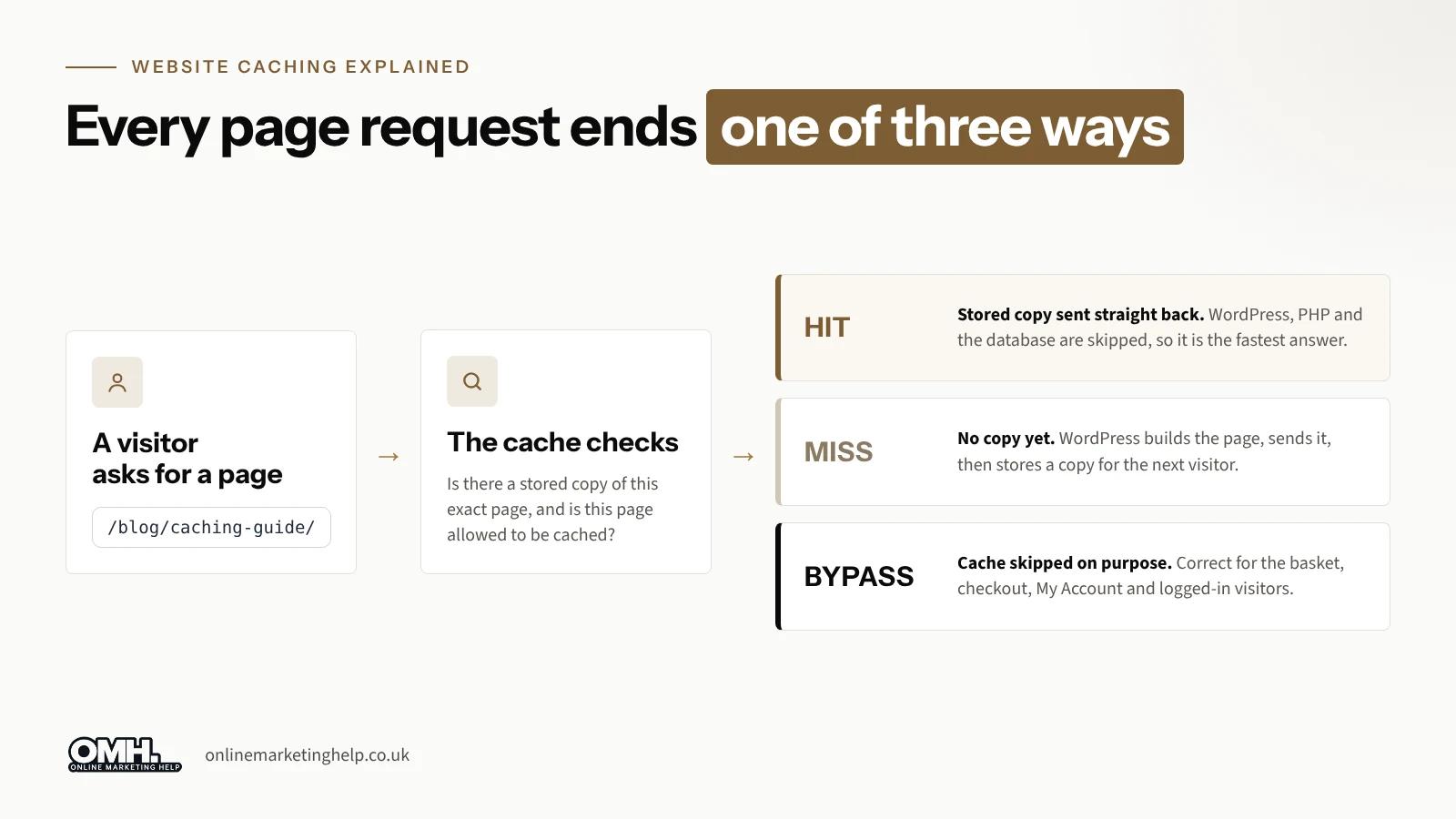
- HIT: a stored copy existed and was sent straight back.
- MISS: there was no suitable copy, so WordPress built the page and may keep a copy for next time.
- BYPASS: the cache was told to skip this request, usually because of a login, a basket or an excluded URL.
In practice, a MISS is not an error and a BYPASS is not a failure. On your checkout page, BYPASS is exactly what you want to see.
The six types of website caching
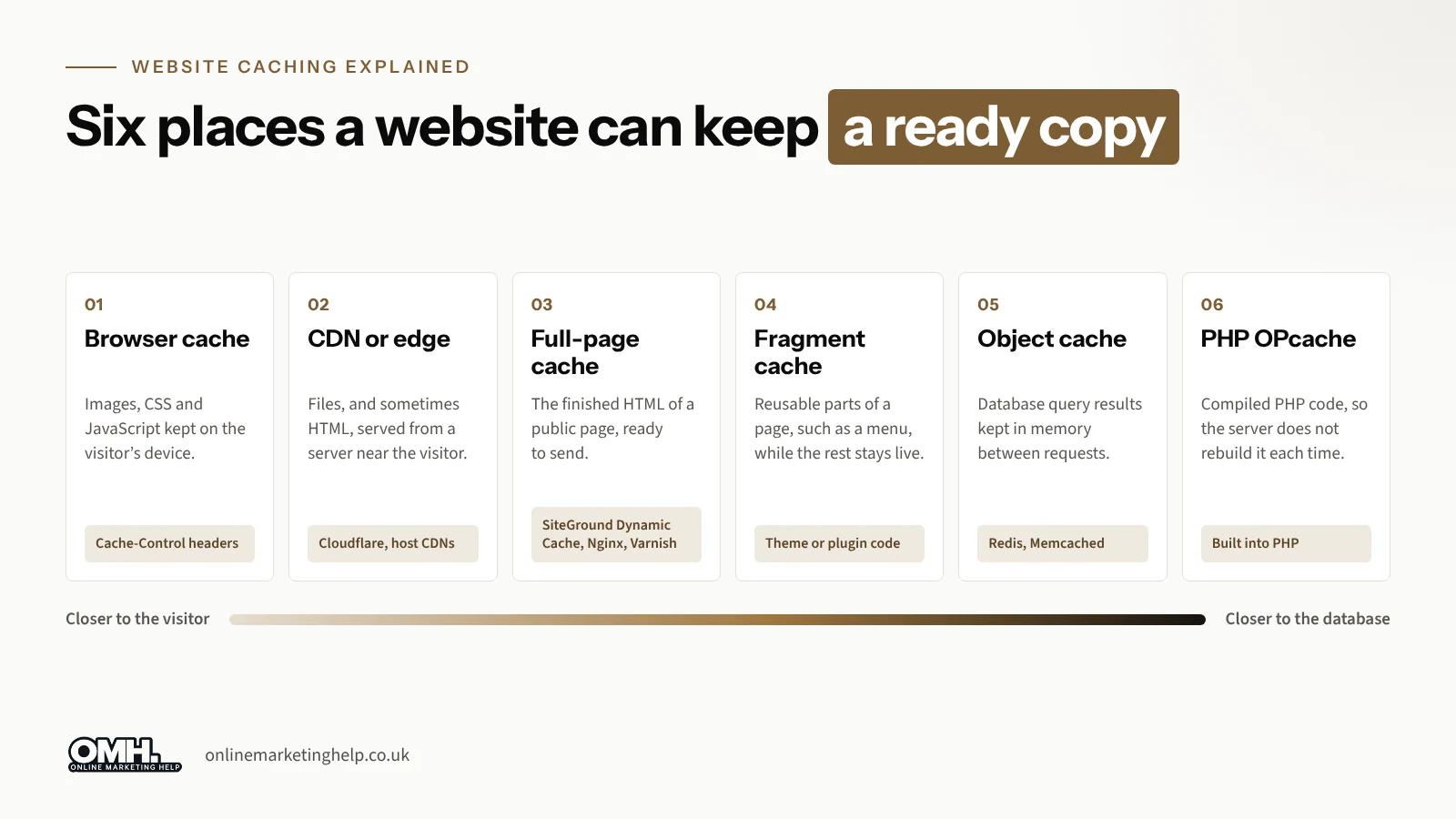
Caching happens in more than one place, which is why "clear cache" in one plugin does not always change what customers see.
| Cache layer | What it stores | Most useful for |
|---|---|---|
| Browser | Images, CSS and JavaScript on the visitor's device | Returning visitors |
| CDN or edge | Static files, and HTML only if set up to | Visitors spread across the UK and abroad |
| Full-page | The finished HTML of public pages | Blogs, service pages, catalogue pages |
| Fragment | Reusable parts of a page | Pages that mix shared and personal content |
| Object | Database query results, in Redis or Memcached | Busy WooCommerce shops |
| PHP OPcache | Compiled PHP code | Every WordPress site, usually on by default |
For most small business sites, the full-page cache makes the biggest difference for visitors who are not logged in. Object caching earns its place on busy shops, where pages that cannot be fully cached still run heavy product queries.
Which pages to cache, and which never to cache
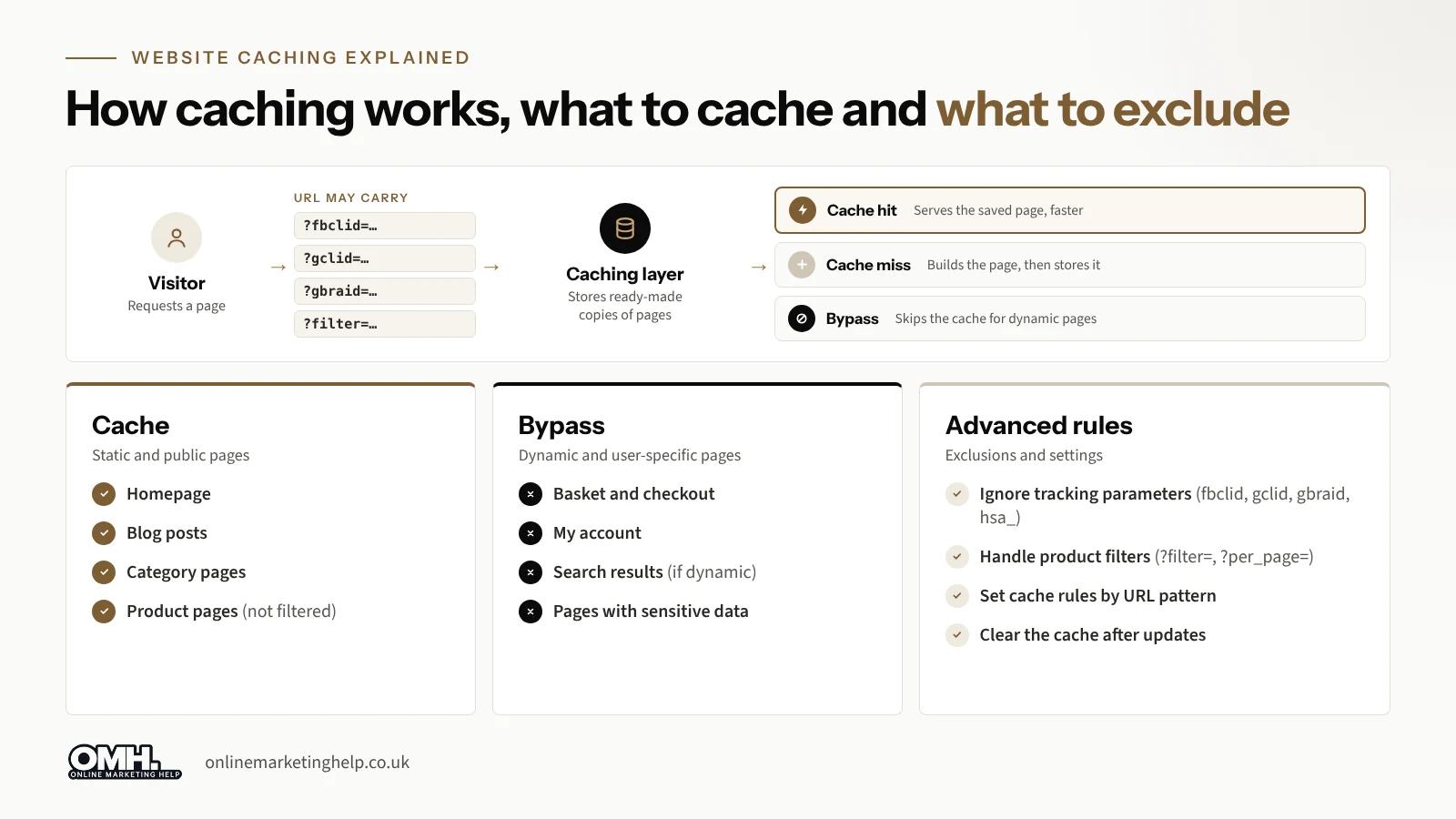
Cache a page when every anonymous visitor should see the same thing. Exclude it when the content belongs to one person, or changes with the request.
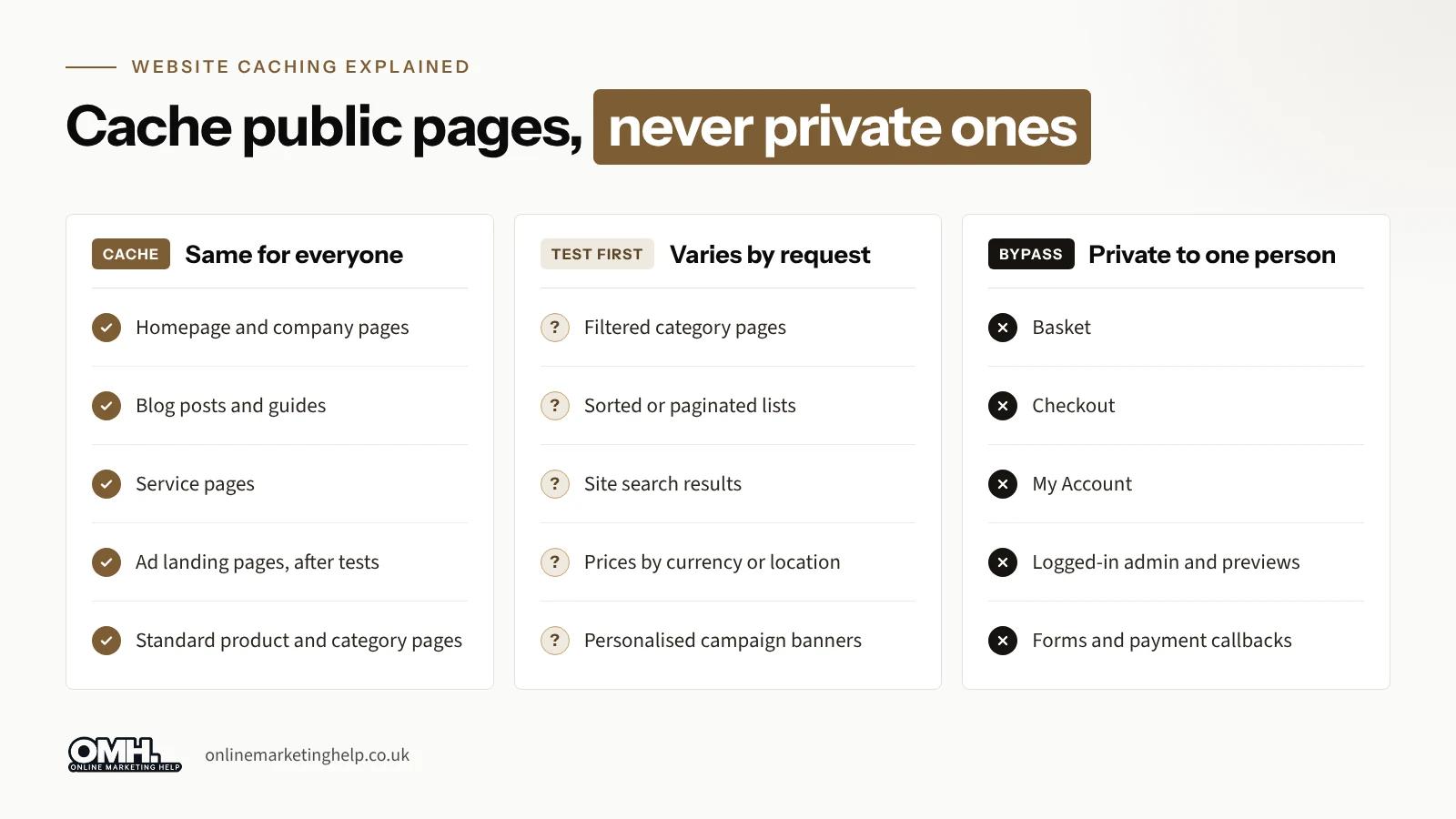
WooCommerce's own caching guidance says Cart, My Account and Checkout need to stay dynamic, because they show customer-specific basket information. It also lists the cookies a cache can use to spot a shopper, including woocommerce_items_in_cart and wp_woocommerce_session_. SiteGround's Dynamic Cache already excludes cart, checkout and my-account, and skips the cache when a shopper or login cookie is present.
Excluding a page from the full-page cache does not mean giving up on speed. Browser caching, object caching and OPcache still help a checkout load quickly.
Why ad tracking tags and product filters need different rules
This is the part that matters most if you run Google Ads or Meta ads to a WordPress site. Some parameters only record where a visitor came from. Others change what is on the page.
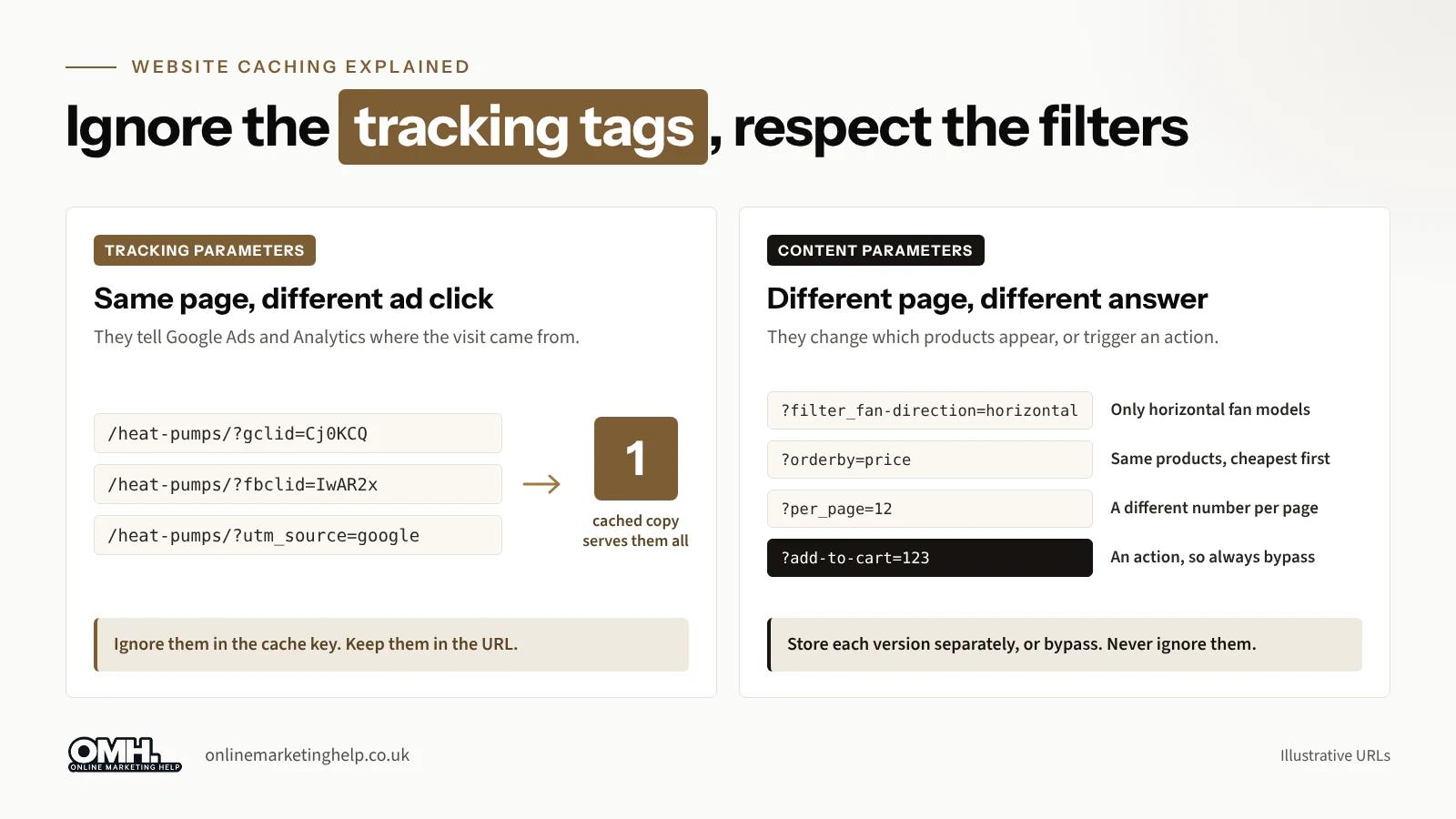
Google Ads adds a gclid to every click and Meta adds an fbclid. If your cache keys on the full query string, every ad click looks like a brand new page.
A worked example. You send 500 Google Ads clicks a week to one landing page. If gclid is part of the cache key, that could mean up to 500 separate cache entries, so nearly every paying visitor gets the slow MISS version while your blog readers get the fast one.
| Parameter | What it does | Cache rule |
|---|---|---|
| gclid, gbraid, wbraid, fbclid, msclkid | Identifies an ad click | Ignore in the cache key, after testing |
| utm_source, utm_medium, utm_campaign | Labels the campaign | Usually safe to ignore, after testing |
| filter_..., orderby, per_page | Changes the products shown | Keep as separate versions, or bypass |
| add-to-cart, preview, checkout tokens | Triggers an action or private view | Always bypass |
Do not strip tracking tags from the URL to make caching work. Google says the GCLID has to reach the final landing page for conversion tracking. The aim is for the cache to ignore them when choosing which copy to serve, while they stay in the URL for your analytics. One exception: if your site changes a banner or offer based on a campaign tag, that tag does change the page and needs its own version.
Filters are the opposite. On /pool-heat-pumps/?filter_fan-direction=horizontal, ignoring the filter would show the full list to someone who asked for horizontal-fan models. Caching every combination creates a huge number of copies, and bypassing them all puts the load back on your database. Depending on the shop, cache a few popular combinations, add an object cache for the product query, or bypass and make the query faster.
Setting cache rules on SiteGround and Cloudflare
SiteGround's Speed Optimizer has two custom filters that do opposite jobs. sgo_ignored_query_params tells the cache to ignore a parameter when it creates and serves copies. sgo_bypass_query_params tells it to skip the cache whenever that parameter appears. Mix them up and you get the reverse of what you wanted.
Here is an example for a small site-specific plugin, in the same pattern as SiteGround's documentation. Try it on staging first, and check that nothing on your site changes the page based on these tags.
add_filter( 'sgo_ignored_query_params', 'omh_ignore_tracking_params' );
function omh_ignore_tracking_params( $ignored_query_params ) {
    $tracking = array(
        'gclid', 'gbraid', 'wbraid', 'fbclid',
        'utm_source', 'utm_medium', 'utm_campaign',
    );
    return array_unique( array_merge( $ignored_query_params, $tracking ) );
}
It leaves filter, orderby, per_page and add-to-cart alone on purpose. It also does not guarantee a HIT for every ad click, because cookies, CDN rules and security checks can still get in the way.
On Cloudflare, the controls depend on your plan. Choosing exactly which query string parameters go into the cache key is an Enterprise feature, while the blunter "ignore query string" setting is on every plan.
How to check your cache is working
- List every cache layer. Host, plugin, CDN, object cache and browser headers. Done when you know which one serves your HTML.
- Request a public page twice, logged out. Done when the second response shows a HIT.
- Repeat with ?gclid=test on the end. Done when you know whether ad clicks get a HIT, a MISS or a BYPASS.
- Open a filtered category URL. Done when the products shown match the filter, every time.
- Add something to the basket, then visit cart and checkout. Done when both show BYPASS and your own basket.
- Change a price, purge, and reload logged out. Done when the new price appears straight away.
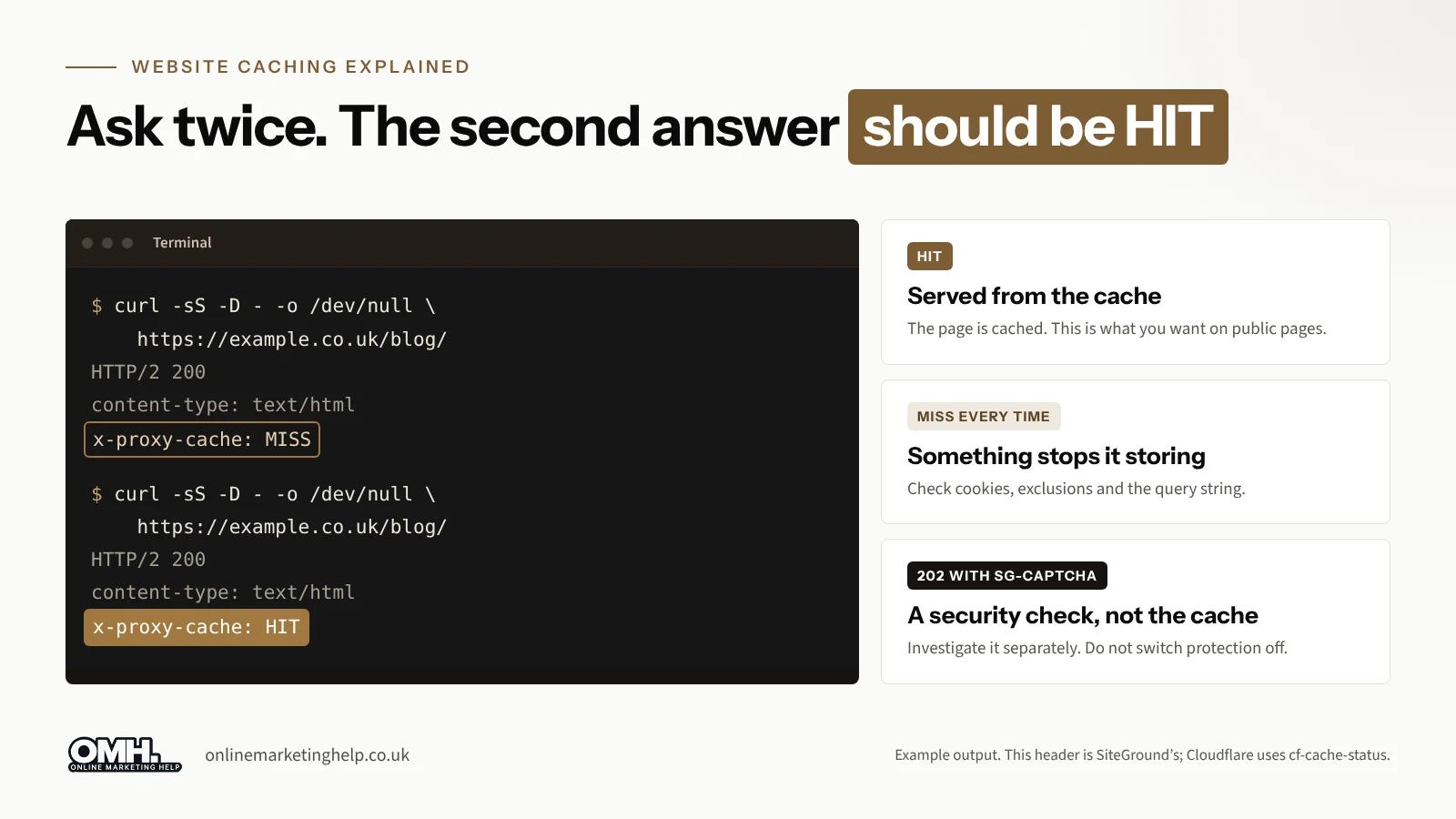
A 202 response with SG-Captcha is SiteGround's anti-bot check, so look at it separately and do not switch protection off to make a test pass. Check in a real browser as well as cURL, because unusual tools are often treated differently from real visitors.
When content changes, purge only what changed where you can. On SiteGround that is Speed Optimizer, Site Tools or the WP-CLI command wp sg purge. A maintenance plan should include re-running these checks after every plugin or hosting change.
UK GDPR and caching personal data
A badly set cache is not only a speed problem. If a shared cache stores an account or order page and serves it to the next visitor, you have shown one customer's details to another.
- It counts as a breach. The ICO's breach guidance treats unauthorised disclosure of personal data, including sending it to the wrong person, as a personal data breach.
- The deadline is 72 hours. Unless the breach is unlikely to put people's rights and freedoms at risk, you must report it to the ICO within 72 hours of becoming aware of it.
- Record it either way. Keep a note of the breach and your reasoning, even if you decide it does not need reporting.
- Test before you switch. Whenever a new cache plugin, CDN or host goes in, check cart, checkout and account pages before go-live.
Frequently asked questions
What is website caching in simple terms?
Keeping a ready copy of a page, file or database result, so your site does not rebuild it for every visitor. Done well, pages load faster and your server copes with more traffic. Done badly, visitors see outdated or private content.
Can website caching cause WooCommerce prices to display incorrectly?
Yes. If a cache serves an outdated product page or ignores a query parameter that changes the displayed content, customers may see incorrect prices or product information. Check cache exclusions, dynamic pricing rules and cache-purge settings to make sure visitors receive the correct version.
Should I cache every page on my WordPress site?
No. Pages that look the same for every visitor, such as your homepage, blog posts and standard product pages, are good candidates. Cart, checkout, My Account, logged-in admin pages and form or payment endpoints should never come from a shared page cache.
Does gclid stop a page from being cached?
It depends on your cache. Some include the full query string in the cache key, some bypass any URL with a query string, and some let you ignore chosen parameters. Check your settings and response headers, and keep gclid in the URL for tracking.
What is the difference between page caching and object caching?
Page caching stores a page's finished HTML and sends it as it is. Object caching stores database query results, so even a page that must be built fresh, like a filtered category, runs faster. Busy WooCommerce shops often benefit from both.
Will caching improve my Google rankings?
Not on its own. Faster responses support a better experience, but rankings also depend on relevant content, sound indexing and links. Our SEO team treats speed as one part of the picture.
Get your caching checked
We look after WordPress and WooCommerce sites for UK businesses, caching included. If your landing pages keep missing the cache or customers see old prices, we can find out which layer is responsible.
- Start with a free website audit to see where your site is losing speed.
- If you run an online shop, see how we help increase ecommerce sales.
- Or get in touch and tell us what you are seeing.
Keep reading
Related insights
Websites & Ecommerce
What to do after malware removal: 11 steps to stay clean
Your website is clean again, but most reinfections come from what the cleanup left behind. Here is what to do next, in order, from backdoors and passwords to Google warnings and UK reporting rules.
Read articleWebsites & Ecommerce
How I Built a Beautiful Landing Page with Claude (and What AI Couldn’t Do)
See how I built a beautiful landing page with Claude: the brief, prompts, design tips and UK rules to check before launch. Read the step-by-step guide.
Read articleWebsites & Ecommerce
Shopify vs WordPress for UK Online Stores: Which Is Right for You?
Shopify vs WordPress for UK online stores: real 2026 costs in pounds, SEO, VAT, payment fees and Google Trends data to help you pick the right platform.
Read articleTurn useful ideas into a practical growth plan.
Tell us what you want to improve and what you have tried so far. We will help you identify the clearest next step.
What happens next
- Review the current position
- Define the commercial objective
- Agree the work and measurement
Ring it from any phone
It's set up as a fictional heating company in Leeds and answers day and night. Standard call rates apply.
The demo line is being set up.Book a demo and we'll play you one on the call.
Three things to try
- 1Book a boiler service for next week.
- 2Ask to speak to a person.
- 3Ask something it can't know, and hear how it handles it.