

SEO9 min read
How to Find and Fix Multiple H1 Tags: A Real SEO Audit Case Study
Learn how to find and fix multiple H1 tags with Screaming Frog, Detailed SEO Extension and HTML checks. Real audit findings and practical solutions.

- Written by
- Melissa Cross
- Published
- Updated
Your SEO tool has flagged dozens of pages with two, four or even nine H1 tags. It looks alarming. Usually it is not an emergency, but it is often a sign that something in your site’s templates is built badly.
We found exactly this during a technical SEO audit for a UK business website: duplicate H1s across service pages, location pages and blog posts. Rather than act on the crawl report alone, we traced each one back to its cause. Below is the process we used and what we recommended.
Quick answer: Multiple H1 tags do not trigger a Google penalty, but duplicate or misplaced ones are worth fixing. Find the affected pages with a crawler, check each one in the page source to see why the extra H1s are there, then fix the shared template: keep one H1 per page and turn the other headings into H2s, or remove them if they only repeat the title.
Do multiple H1 tags hurt SEO?
Not on their own. Google’s John Mueller said in 2019 that a site will “rank perfectly fine with no H1 tags or with five H1 tags”, as reported by Search Engine Journal (30 September 2019). Screaming Frog’s own guidance says the same thing from the other side: multiple H1s are not strictly an error, since HTML5 allows them, but they can cause usability problems, and it suggests a single H1 with H2 to H6 for everything else.
So the question is not “how many H1s?” but “why are they there?” An H1 is the page’s main heading, like a chapter title, with H2s as the sections inside it. If the same title appears twice because the site builds separate desktop and mobile versions, the HTML is carrying needless duplication. If a blog post has “Latest News” as an H1 next to its real title, the structure no longer says what the page is about. People using screen readers move around a page by its headings, so a muddled structure costs them too.
How we find multiple H1 tags: three checks
Step 1: crawl the site with Screaming Frog
A crawl shows every affected page at once.
- Open Screaming Frog SEO Spider, enter the site URL and start the crawl.
- Open the H1 tab and select the Multiple filter.
- Check the Occurrences column, then export the list.
Look for patterns. When a whole group of pages has the same number of H1s, a shared template is usually responsible.
One thing to know: the Multiple filter finds pages with more than one H1. The Duplicate filter finds different pages sharing identical H1 text. They are separate problems.
Step 2: check single pages with a browser extension
The crawl tells you where to look, not why. We open affected URLs in Chrome and check the Headings tab in the Detailed SEO Extension to see each H1’s text in order. That is when the useful questions appear. Why does the same title show twice? Why is a promotional banner an H1?
Step 3: read the page source
Right-click and choose View Page Source (Ctrl + U on Windows, Cmd + Option + U on a Mac), then search for <h1. Look at the HTML and class names around each match. Names like “desktop-title” and “mobile-title” give the game away quickly.
View Page Source shows the HTML the server sends. Chrome DevTools shows the page after JavaScript has run. On JavaScript-heavy sites, check both. Your theme can also be the culprit, which we cover in how your website’s theme affects SEO and rankings.
What the audit turned up
The audit found the same five kinds of issue repeating across different page types. The table shows how those patterns typically look. The H1 counts are illustrative, not figures from the client’s site.
| Page type | H1s (example) | Typical cause |
|---|---|---|
| Home page | 3 | Desktop and mobile copies of the title, plus a promo banner H1 |
| Main services page | 9 | Repeated titles and service categories set as H1s |
| Location page | 5 | Duplicate banner headings and extra section H1s |
| Contact page | 2 | Desktop and mobile versions of the same title |
| Blog post | 4 | A generic “Latest News” H1 alongside the real title |
| Case studies page | 6 | Four identical titles from two banners, plus two section H1s |
The number of headings mattered less than the repetition. The same faults on page after page pointed straight at shared templates. The fixes below are what we recommended. We are not claiming they have all been implemented, or that they changed the client’s rankings.
Five causes of multiple H1 tags, and how to fix each
1. Separate H1s for desktop and mobile
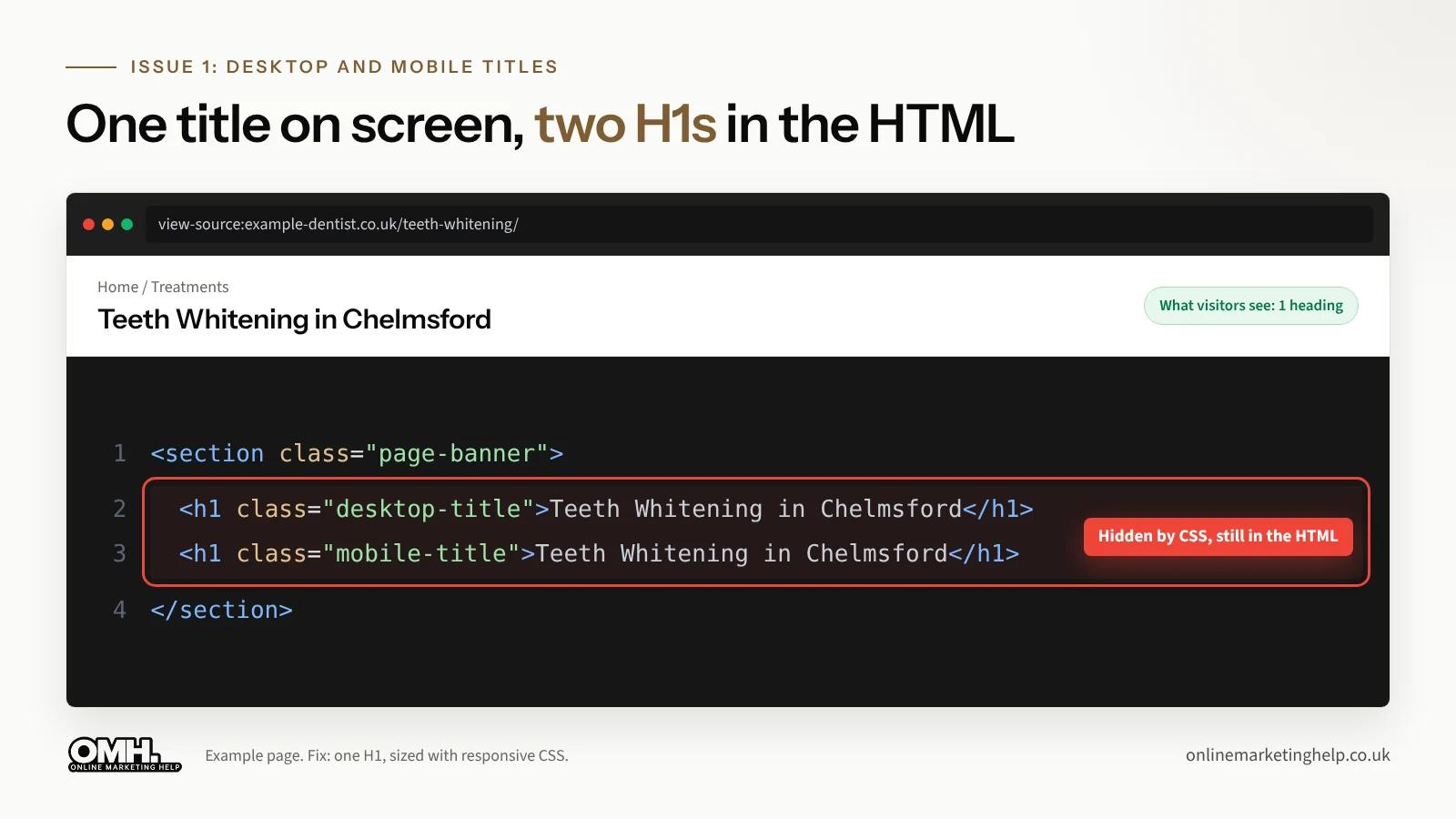
The most common cause. The site outputs the title twice and hides one version depending on screen size:
<h1 class="desktop-title">Teeth Whitening in Chelmsford</h1>
<h1 class="mobile-title">Teeth Whitening in Chelmsford</h1>
Both stay in the HTML. Fix: use one H1 and let responsive CSS handle size and position. MDN’s heading documentation is clear that heading levels describe structure, not text size. Visitors should see no difference.
2. The same title four times
Two banner sections, each with a desktop and a mobile copy of the title, make four identical H1s. A visitor sees “Office Removals in London” once. A crawler counts it four times. Fix: find where each banner outputs the title, keep one, and give any second banner a heading that describes its own section.
3. Promotional sections marked as H1
A solicitor’s page titled “Conveyancing Solicitors in Brentwood” might have sections such as “Why choose our firm?” and “What our clients say” set as H1s. They support the main topic, so fix them as H2s, keeping the existing styling.
4. Blog posts with a generic H1
A “Latest News” banner set as an H1 sits above every post’s real title. Fix: make the article title the H1 and turn “Latest News” into a breadcrumb or small label. Change it once in the blog template and every post follows.
5. Service categories as separate H1s
An accountant’s “Accounting services for small businesses” page might mark bookkeeping, VAT returns, payroll and self-assessment as H1s. Fix: keep the main service as the H1 and each category as an H2, with H3s for detail underneath.
How to fix multiple H1s in WordPress and Elementor
Most of the sites we audit run on WordPress, and the extra H1s usually come from one of three places.
- Elementor’s Heading widget. Every Heading widget has an HTML Tag setting in its Content tab. Builders often set banner and section titles to H1 because H1 is the default they reach for. Change the tag to H2, and the design stays the same because the styling is set separately.
- The theme and the builder both printing the title. Many themes output the page title as an H1, and then the page design adds its own H1 title as well. Turn off one of them, either the theme’s page title or the builder’s heading, but not both.
- The block editor. In a Heading block, the level picker in the toolbar sets H1 to H6. Content written in the editor should normally start at H2, because the theme already supplies the H1.
If the duplicate H1s are hard-coded into a custom theme, it is a template change for your developer. That is the kind of job our WordPress development team takes on.
Fix the template, not the page
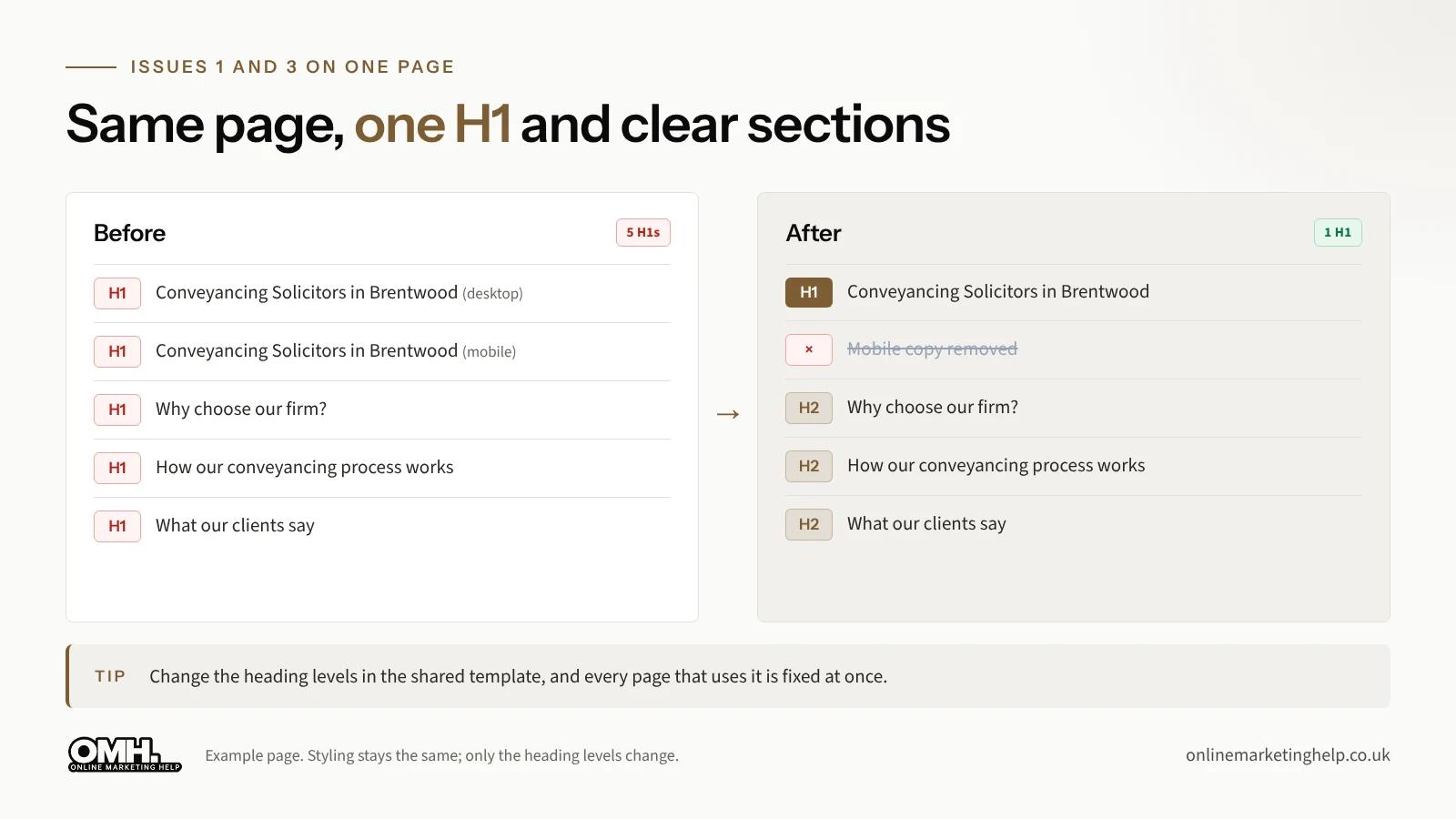
Listing heading changes page by page does not fix the cause. If ten pages share one banner component, fixing the component fixes all ten, and new pages come out right too.
| Template or component | Recommended fix |
|---|---|
| Main banner | One responsive H1, styled with CSS |
| Repeated banner sections | Remove the repeated page title |
| Promotional and related-content sections | H2 section headings |
| Blog post template | Article title as the only H1; “Latest News” as a label |
| Service category sections | H2 beneath the main service H1 |
Test each template change on a few pages before rolling it out, and check that nothing in the design moved. If you are choosing who should do that work, our guide on how to choose the right web development partner covers what to ask.
How to check the fix worked
Do not mark an issue resolved because the developer says it is done. Check it the same way you found it:
- Re-crawl the affected pages and compare the H1 Multiple filter with the original report.
- Re-check a few pages with the extension to make sure useful section headings were not deleted by mistake.
- Search the page source for <h1 to confirm the duplicates are gone, not just hidden.
- Test on desktop and mobile widths: heading sizes, banners, spacing and buttons.
- Only mark an issue verified once you have checked the live page.
Mistakes to avoid
- Turning every extra H1 into an H2 without looking. Some should be removed, because they only repeat the title.
- Trusting the crawl report as a diagnosis. It tells you where to look, nothing more.
- Editing page by page when the problem sits in a shared template.
- Promising rankings. Cleaner headings help structure and accessibility. They do not guarantee more traffic, and we would be wary of anyone who says otherwise.
Multiple H1 tags: frequently asked questions
Are multiple H1 tags bad for SEO?
Not automatically. Google has said pages rank fine with several H1s. Needless duplicates or headings at the wrong level are still worth fixing, because they make the page structure harder for people and tools to follow.
How many H1 tags should a page have?
For most pages, one clear H1 is the simplest choice. Use H2 and H3 headings for the sections underneath it.
How do I find multiple H1 tags?
Crawl the site with Screaming Frog and open the H1 tab’s Multiple filter. Then confirm the cause with a browser SEO extension and the page source.
Will fixing multiple H1 tags improve rankings?
There is no guarantee. A cleaner heading structure is good practice when there is a genuine problem, but rankings depend on many other things.
Need help with your website’s technical SEO?
We help UK businesses turn audit reports into a short list of fixes their developer can actually act on. If a tool is flagging issues you are not sure about, our free website audit is a good place to start. You can also read how an AI SEO audit found casino spam other tools missed, see our website design work, check our pricing, or contact the team.
Keep reading
Related insights
SEO
Duplicate Google Tags in WordPress: How We Traced a Messy GA4 Setup
Found the same Google Analytics tag installed twice on your WordPress site? Here is how to check whether GA4 is really double counting, which installation to keep, and how to remove the extra code without losing tracking.
Read articleSEO
Does Changing Your Domain Name Affect SEO? What Happens to Rankings and Backlinks
Changing your domain can affect SEO rankings, traffic and backlinks. Learn how to protect your SEO and recover from traffic drops.
Read articleSEO
Best AI receptionist UK: Five options compared for 2026
We compared five AI receptionists a UK business can sign up to now, with prices checked in 2026, what each one does badly, and the GDPR steps to take before you switch one on.
Read articleTurn useful ideas into a practical growth plan.
Tell us what you want to improve and what you have tried so far. We will help you identify the clearest next step.
What happens next
- Review the current position
- Define the commercial objective
- Agree the work and measurement
Ring it from any phone
It's set up as a fictional heating company in Leeds and answers day and night. Standard call rates apply.
The demo line is being set up.Book a demo and we'll play you one on the call.
Three things to try
- 1Book a boiler service for next week.
- 2Ask to speak to a person.
- 3Ask something it can't know, and hear how it handles it.